
Integration with RChilli MCP
The RChilli MCP Server integration with Salesforce Agentforce enables organizations to use RChilli capabilities directly within Agentforce workflows.
By adding RChilli MCP tools to Agentforce agents, recruiters can automate recruitment-related activities and access candidate, job, and taxonomy information through conversational interactions.
For example, an Agentforce agent can use RChilli MCP tools to parse resumes, identify relevant skills, match candidates with jobs, generate interview questions, and retrieve standardized skill or job profile information.
This integration extends Salesforce Agentforce with RChilli recruitment intelligence while allowing users to continue working within Salesforce.
- Sign in to Salesforce and go to Setup.
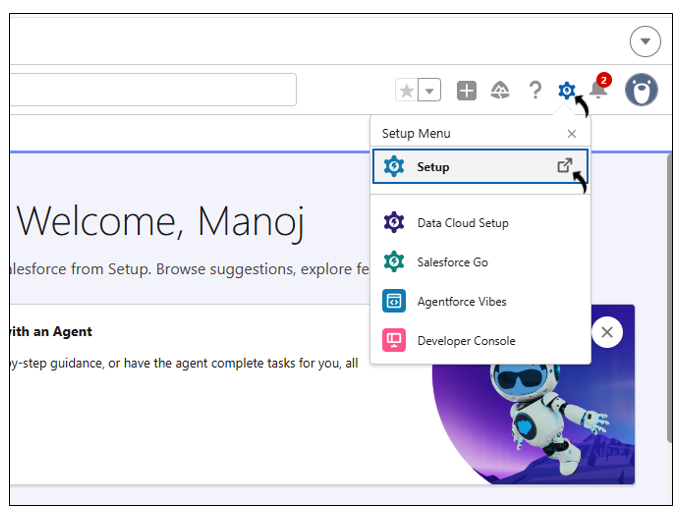
- In Quick Find, search for Registered MCP Servers, and then select
Registered MCP Servers.
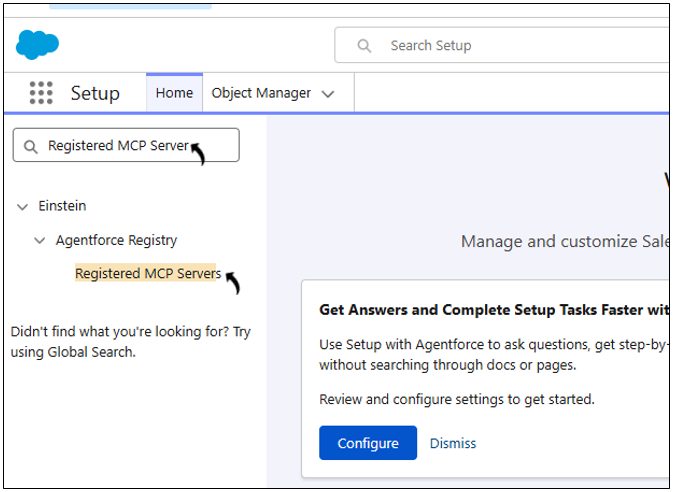
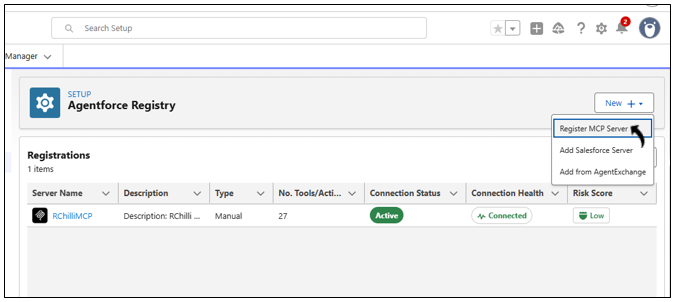
- On the Agentforce Registry page, select New, and then select
Register MCP Server.
- In the Create Connection dialog box, enter the RChilli MCP Server details,
and then select Create and Continue.
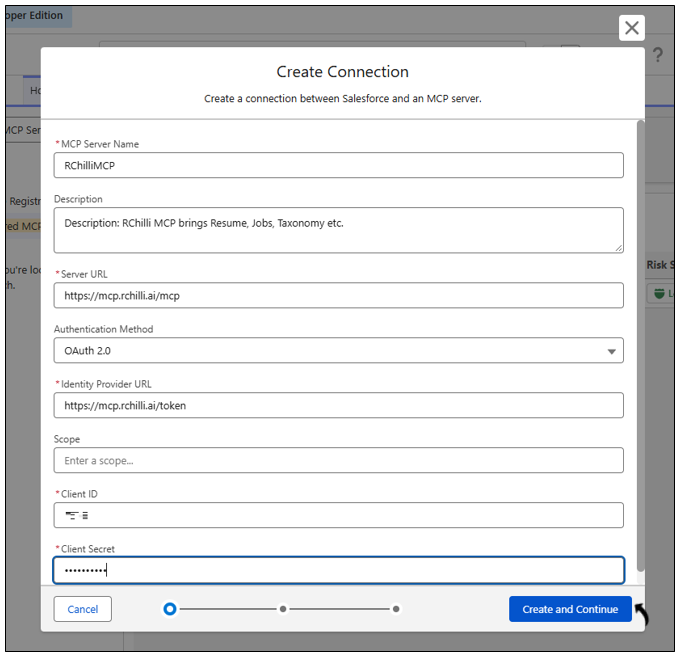
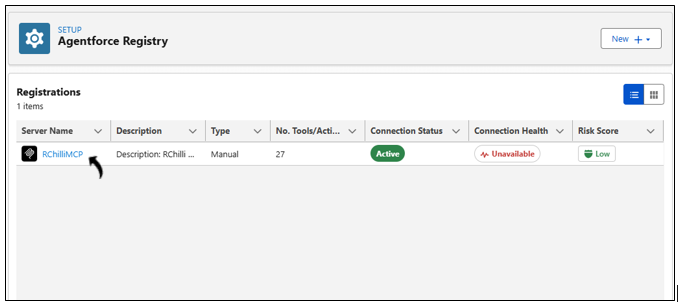
Field Value MCP Server Name RChilliMCPDescription RChilli MCP provides access to resume, job, taxonomy, and other RChilli capabilities.Server URL https://mcp.rchilli.ai/mcpAuthentication Method OAuth 2.0Identity Provider URL https://mcp.rchilli.ai/tokenScope This is optional, you can leave it empty. Client ID Your RChilli client ID, contact support@rchilli.com. Client Secret Your RChilli client secret, contact support@rchilli.com. - After the connection is created, select the RChilli MCP Server that you
created.
-
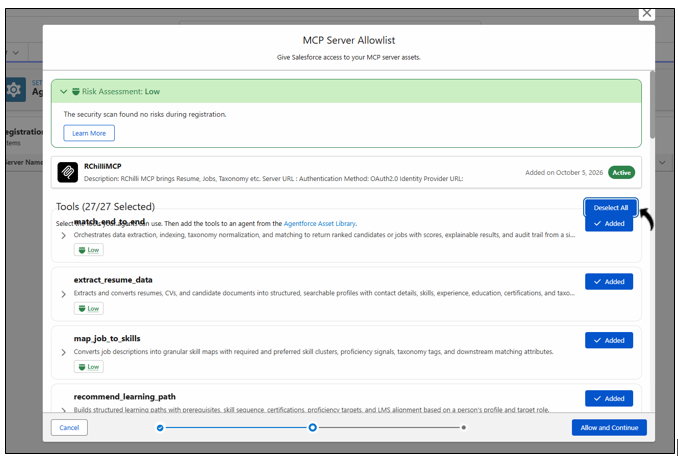
In the MCP Server Allowlist dialog box, configure the tools that you want to make available to Agentforce:
- Review the name and description of each tool.
- Select the tools required for your Agentforce workflows.
- Review the Salesforce MCP risk assessment for the server and tools.
- Select Allow and Continue.
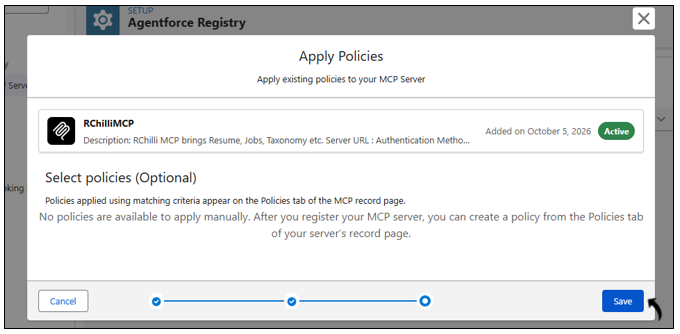
- In the Apply Policies dialog box, review the available policies, if
applicable, and then select Save.
-
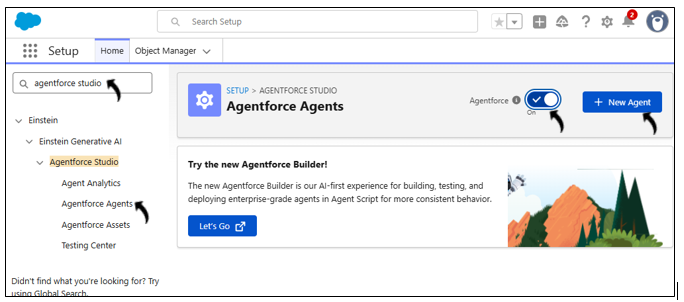
In Quick Find, search for Agentforce Studio, and then select Agentforce Agents.
On the Agentforce Agents page:
- Turn on Agentforce.
- Select + New Agent to create an agent.
Create Agent
- In Agentforce Builder, enter the purpose of the agent. For example:
Recruiter Assistantand select the continue icon.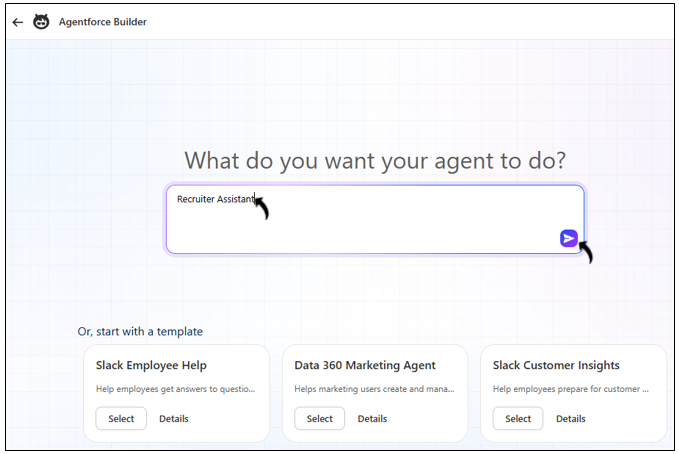
- Enter a description that explains what the agent should do. For
example:
This agent assists recruiters
        with recruitment-related tasks using RChilli capabilities.
Select the continue icon.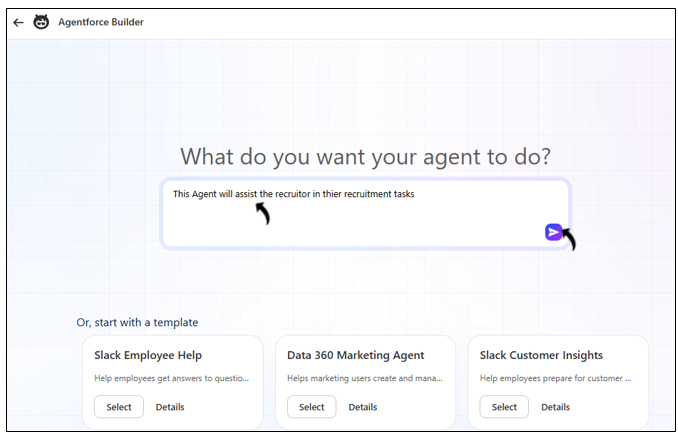
-
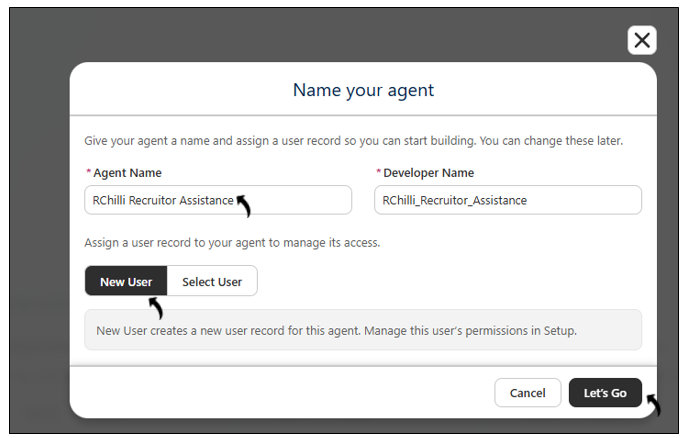
On the Name your agent page:
- Enter an Agent Name, for example,
RChilli Recruiter
                                Assistant
. - Verify the automatically generated Developer Name.
- Select Select User to assign an existing user who will manage agent access, or select New User to create a user.
- Select Let's Go.
- Enter an Agent Name, for example,
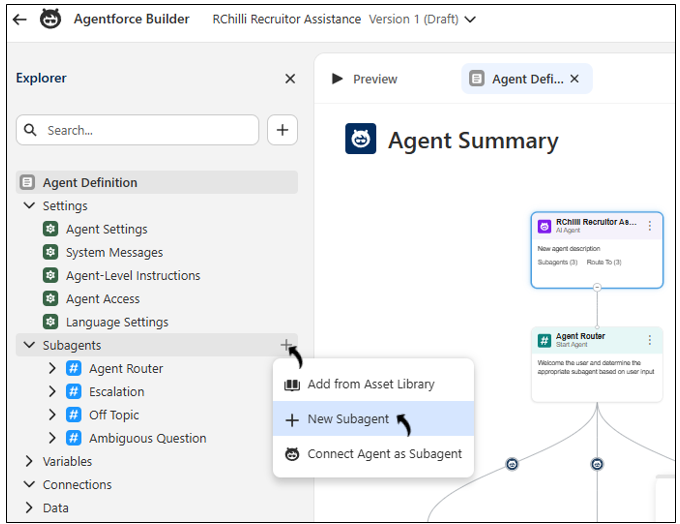
- In the Subagents section, select the + icon, and then select
New Subagent.
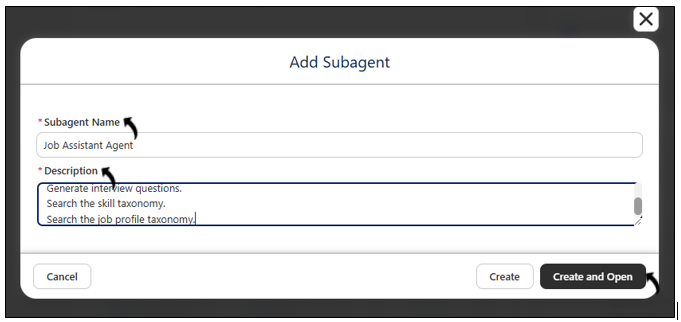
- Enter the Subagent Name and Description.For example:
- Subagent Name: Job Assistant Agent
- Description:
- Generate job descriptions.
- Parse job descriptions.
- Generate interview questions.
- Search the skill taxonomy.
- Search the job profile taxonomy.
- Select Create and Open.
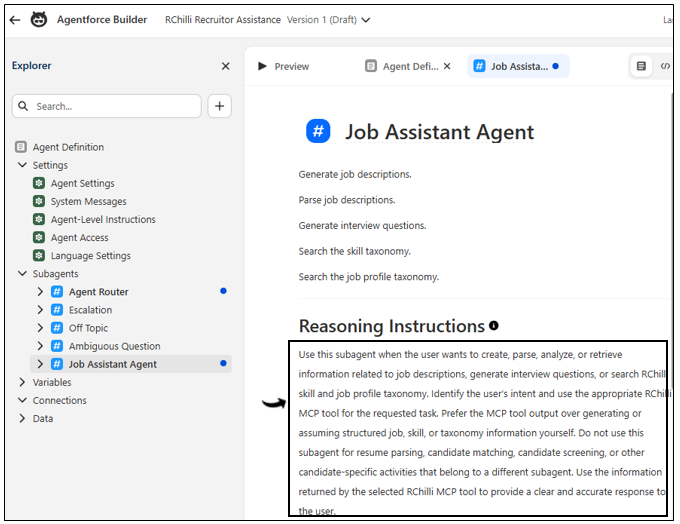
- In the newly created subagent, add the Reasoning Instructions. Enter
instructions that define when and how the subagent should use the RChilli MCP
tools. For example: Use this subagent when the user wants to create, parse, analyze, or retrieve information related to job descriptions, generate interview questions, or search RChilli skill and job profile taxonomy. Identify the user’s intent and use the appropriate RChilli MCP tool for the requested task. Prefer the MCP tool output over generating or assuming structured job, skill, or taxonomy information yourself. Do not use this subagent for resume parsing, candidate matching, candidate screening, or other candidate-specific activities that belong to a different subagent. Use the information returned by the selected RChilli MCP tool to provide a clear and accurate response to the user.
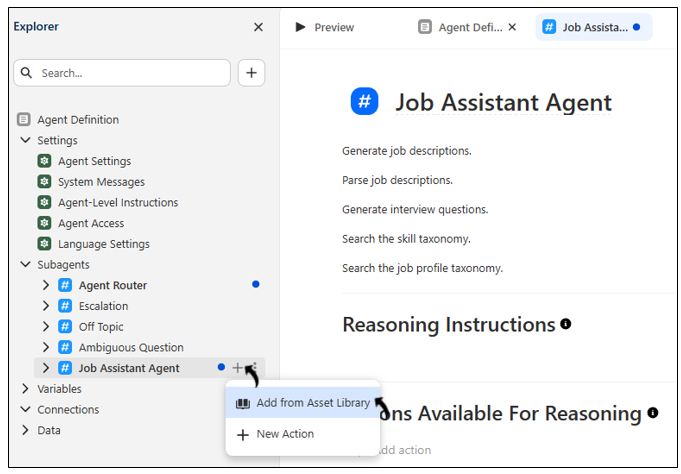
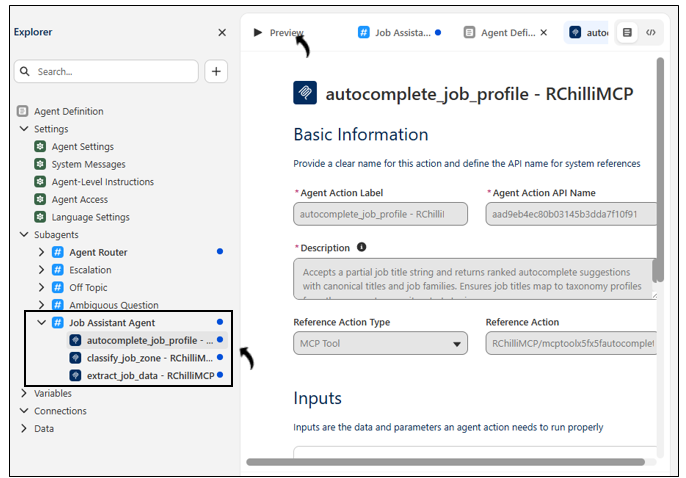
- In the newly created subagent, select the + icon, and then select Add
from Asset Library..
- Search for
RChilli, select the RChilli MCP tools required for the subagent, and then select Add to Agent.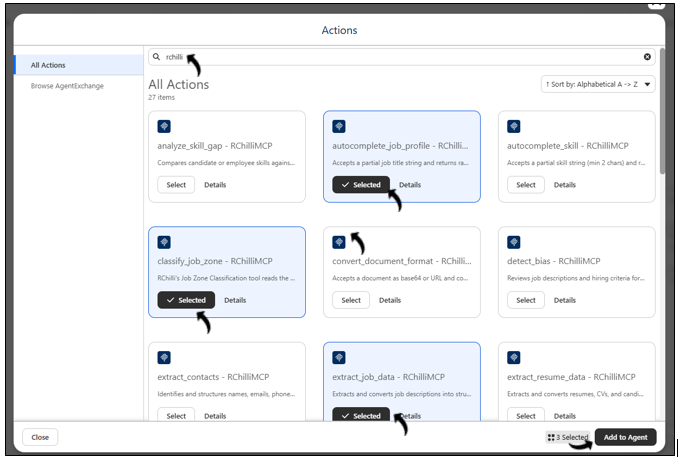
- Verify that the selected RChilli MCP tools appear under the subagent, and then
select Preview to test the agent.
- Enter a request that should use one of the configured RChilli MCP tools. Verify
that the agent invokes the appropriate RChilli MCP tool and returns the expected
response.
For example:
Give me skills related to Java.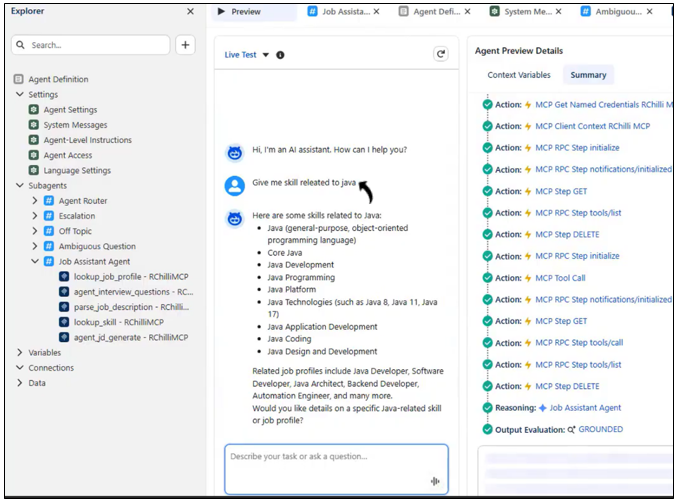
You can create additional subagents based on your recruitment use cases. To create another subagent, repeat steps 4 through 9 and add only the RChilli MCP tools required for that use case.
For example, you can create subagents for:
- Candidate Matching — Compare a candidate resume with a job description and evaluate the candidate's overall fit.
- Interview Question Generation — Generate role-specific interview questions based on a job description or candidate profile.
- Resume Parsing — Extract structured candidate information from resumes.
- Job Description Processing — Parse job descriptions and identify key requirements, skills, and qualifications.
- Skill and Job Profile Lookup — Retrieve standardized skill and job profile taxonomy information.
- Candidate Screening — Evaluate candidates against job requirements and identify strengths, gaps, and areas for further review.
Create each subagent for a specific purpose and add only the RChilli MCP tools required for that workflow. This keeps the agent configuration focused and helps Agentforce select the appropriate tools for each task.