List of Values Mapping in Myaccount
This topic describe the procedure on how you can configure LOVs for Degree, Certificate, Language, and School, and map them to RChilli fields.
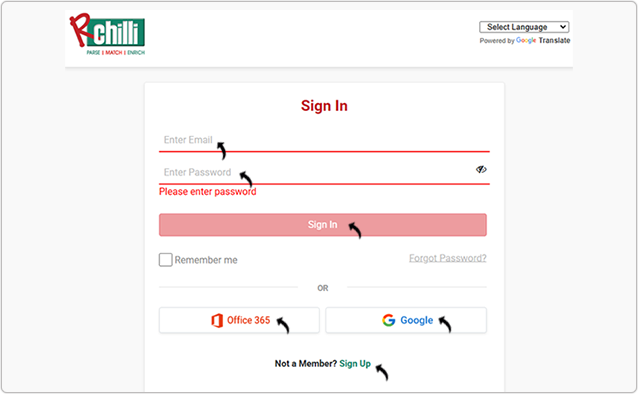
- Enter your Email and Password to log in to your RChilli My Account
client portal or use Office 365 or Google to log in as necessary. You
must sign up if you do not have registered account.Note: Contact support@rchilli.com for My Account portal access, subscription plans, pricing, and for any further support.
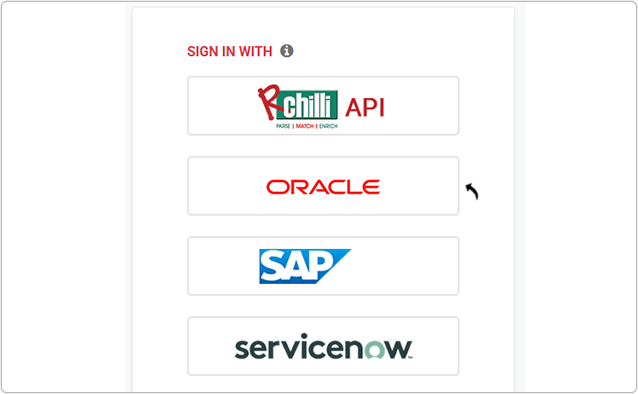
- Click ORACLE to log in into RChilli My Account client portal for
Oracle.
- Navigate to .
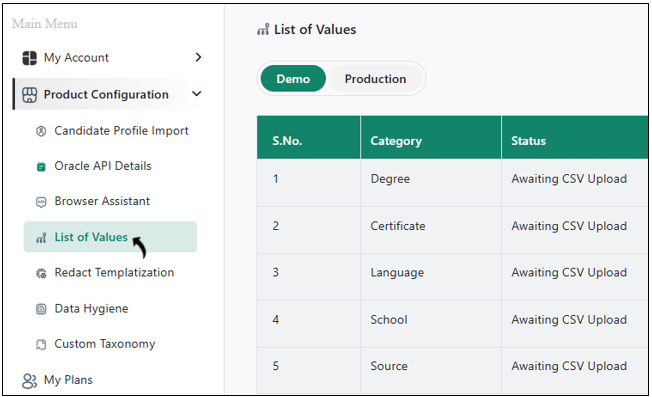
- On the List of Values page, you can have Demo or Production or
both tab based on the access provided to you by RChilli. Note:
- Contact support@rchilli.com for Demo or Production or both tab as necessary.
- Demo tab is for your demo environment and Production tab is for your production environment configuration.
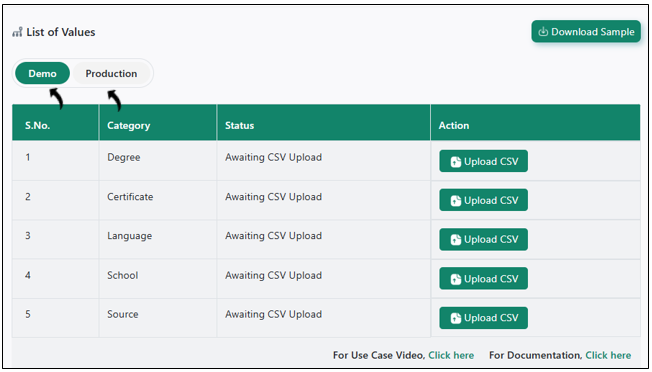
- On the Demo or the Production tab, you can upload CSV file to map
fields for Degree, Certificate, Language, School, and
Source. Note:
- The following steps describe how to upload a CSV file for Degree. Use the same process to upload CSV files for Certificate, Language, School, and Source.
- The Source field represents the origin of the resume (for example, Naukri, Monster, or Shine). The configured source appears in the Oracle Browser Assistant and can be selected when uploading resumes. For more details on how to upload resume in browser assistant, refer Upload Resume.
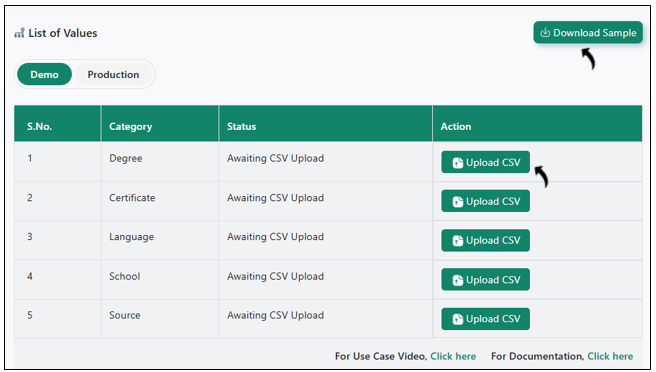
- Upload CSV: Click Upload CSV to upload the CSV file for mapping.Note:
- You can click Download Sample to download the sample CSV's and extract the downloaded sample. The CSV you upload must be in the same format as the sample CSV's.
- The CSV you upload must contains the list of values and the corresponding CONTENT ITEM ID in the oracle.
- Once the CSV uploaded successfully, you can click View Mapping or
Re-Upload the CSV as necessary.
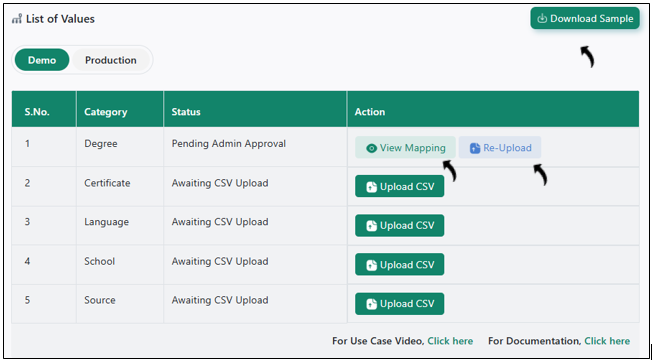
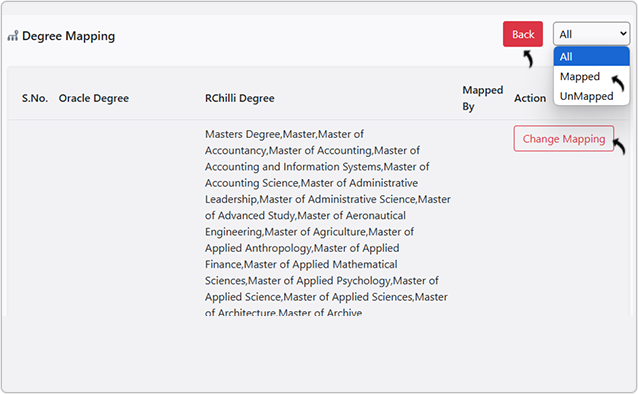
- Once you click View Mapping in the above step, you
can view all the Oracle Degree you uploaded through CSV.
- If degree is mapped, you get option to change mapping. Click Change Mapping to change the mapping for the relevant degree.
- If degree is not mapped, you get option to map. Click Map Now to map the degree field as necessary.
- Click Back to go the previous screen.