
AI Candidate Match Enrichment Companion
The AI Candidate Match Enrichment Companion enables recruiters to automatically evaluate and prescreen candidates who apply for job openings in Oracle Recruiting Cloud. It analyzes candidate information, matches it against job criteria, and provides prescreening insights to help recruiters focus on the most qualified applicants.
To use AI Candidate Match Enrichment Companion agents, follow the below procedure:
- Log in to your Oracle Recruiting Cloud account.
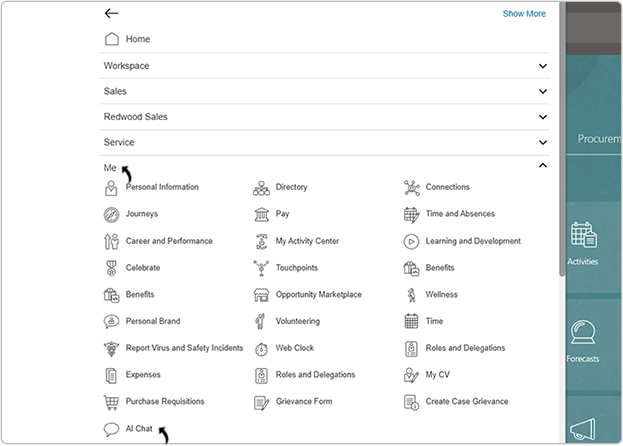
- Navigate to Home → Me → AI Chat.
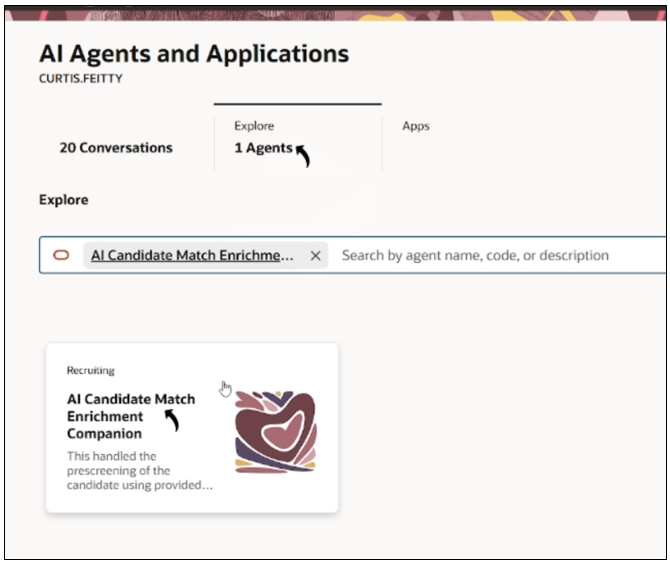
- On the AI Agents page, click .
- In the AI Candidate Match Enrichment Companion chat window, type a prompt in
Ask Oracle such as: Get me the open job
list.
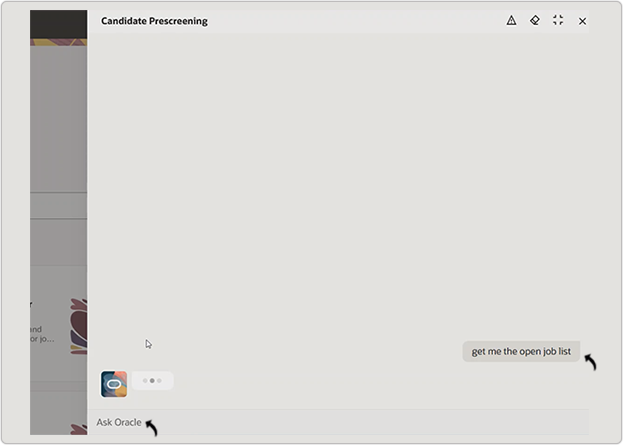
- The agent displays a list of open jobs in Oracle Recruiting Cloud.
- Once the job list is displayed, request the list of applicants for a specific job
requisition. Example prompt: Get me the job application list for job ID 972.
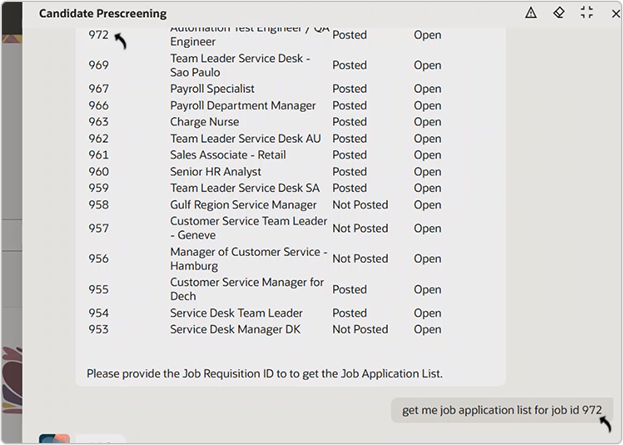
- The agent lists all applicants who applied to that job.
- After viewing the applicant list, type a prompt to prescreen a specific candidate.
Example prompt: Do prescreening for job application ID 300000315756506.
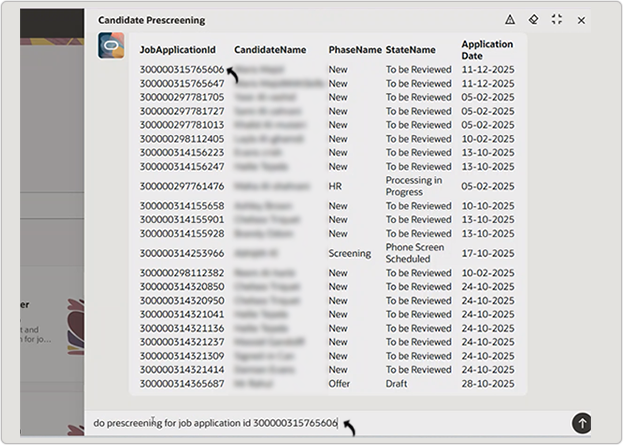
- The agent provides a brief prescreen summary including the matching score and candidate insights.
- If the summary is satisfactory, approve it to send a prescreening link to the
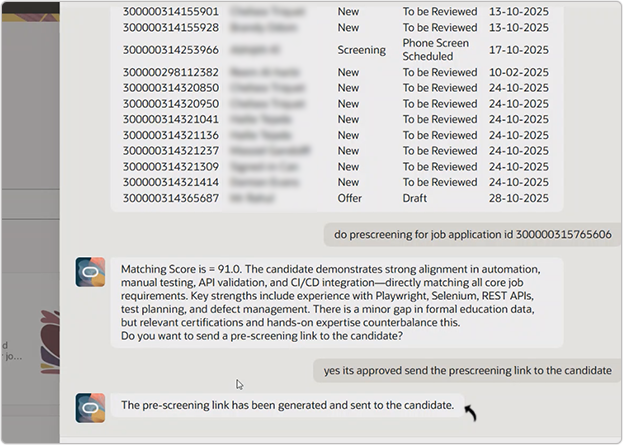
applicant. Example prompt: Yes, it’s approved. Send the prescreening link to the candidate.
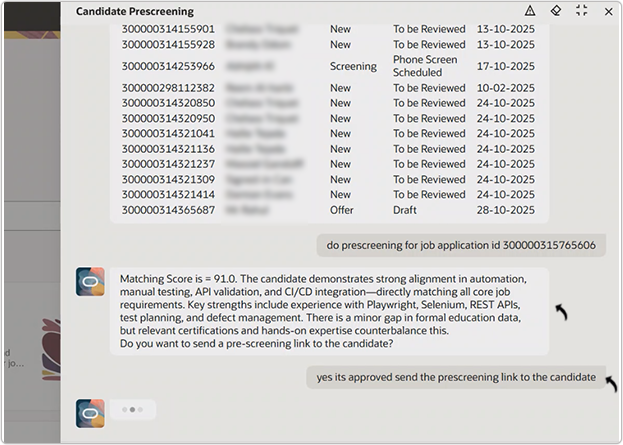
- The agent confirms once the prescreening link is sent to the applicant’s inbox.
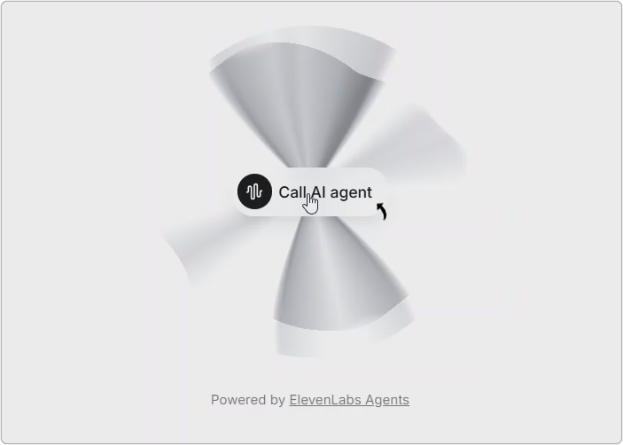
- The applicant opens the prescreening link from the inbox.
- The AI Agent interview page opens, allowing the applicant to complete the
prescreening interview and interact with the AI agent.
Job Requisition Status and Report
Once the prescreening is completed, you can view the applicant’s interview status and
prescreening report in Oracle Recruiting Cloud.
- On the Job Requisitions page, search for the specific job requisition.
- Click the Applications number to view applicants.
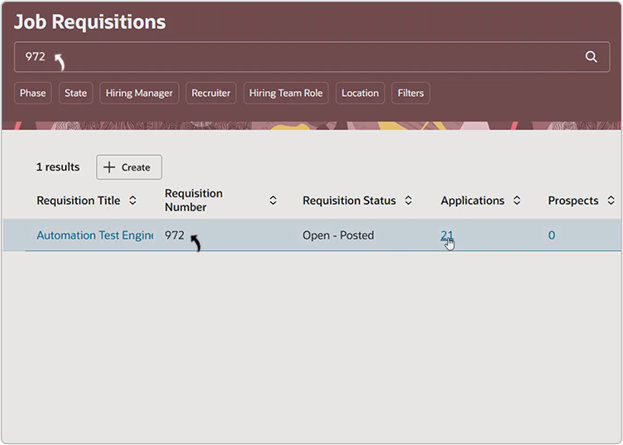
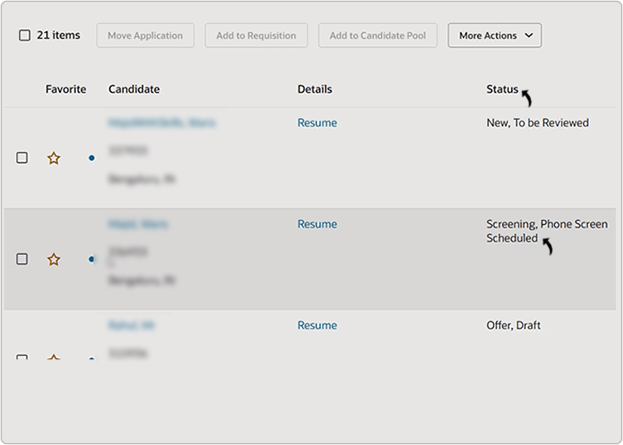
- In the Status column, review the progress of each applicant’s
interview.For example: New, To Be Reviewed, Screening, or Phone Screen Completed.
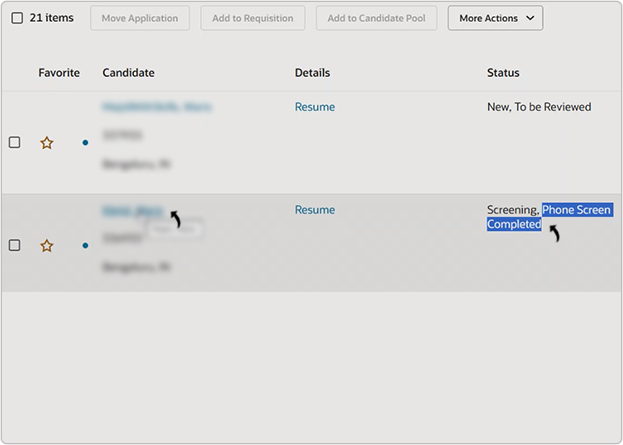
- Once the interview is complete, click the applicant’s name to view the
details.
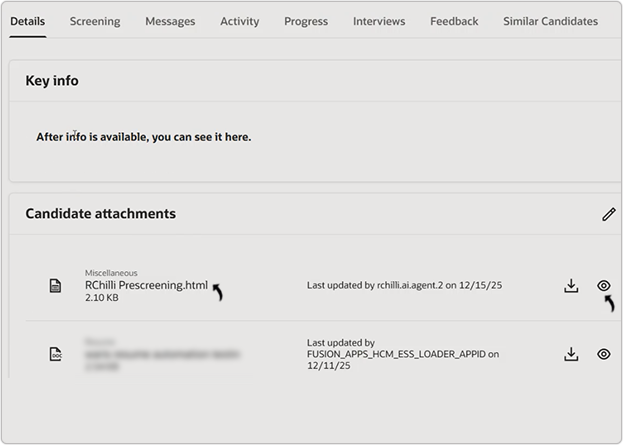
- Click the view icon next to the RChilli Prescreening
attachment to open the report.
- Review prescreening report, the report includes:
-
Prescreening status (e.g., Recommended / Not Recommended)
-
Summary of the conversation between the applicant and AI Agent
-
Transcript of the discussion
You can click Action to take next steps based on the report.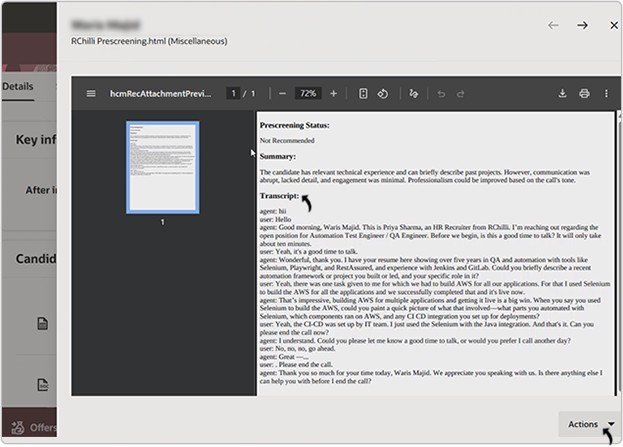
-