Resume Parser Action in ServiceNow
The RChilli Resume Parser Action enables ServiceNow users to automate resume parsing and candidate data extraction within any ServiceNow Business Flow.
This integration simplifies talent data management, enhances recruiting workflows, and eliminates manual data entry by automatically populating candidate profiles and extracting structured data from resumes.
Once installed and configured, users can seamlessly embed the RChilli Resume Parser Action into different ServiceNow processes such as:
-
Applicant Onboarding Flow – Automatically parse resumes submitted by applicants and auto-fill talent profiles in ServiceNow without manual input.
-
Job Matching and Recommendation Flow – Use parsed resume data to identify and display the most relevant job opportunities for applicants.
-
Recruiter Screening Flow – Enable recruiters to quickly parse multiple resumes and extract key candidate details such as experience, skills, and education for review.
-
Hiring Manager Evaluation Flow – Help hiring managers shortlist and rank applicants by parsing resumes and providing structured candidate summaries for faster decision-making.
By embedding the RChilli Resume Parser Action in these workflows, organizations can achieve faster candidate processing, improved data accuracy, and enhanced overall recruitment efficiency.
The following section provides a step-by-step procedure to integrate and use the RChilli Resume Parser Action within ServiceNow.
Procedure
- Buy RChilli Resume Parser from ServiceNow store
- Install RChili Resume Parser
- Authenticate using OAuth
- Update Client Panel
- Test the Connection
- Test the Resume Parser Action
- Use the Action in a Business Flow
Buy RChilli Resume Parser
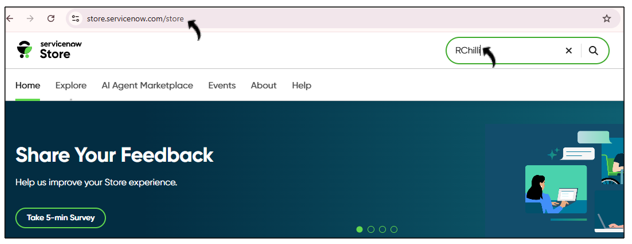
- Go to the ServiceNow Store and search for
RChilli.
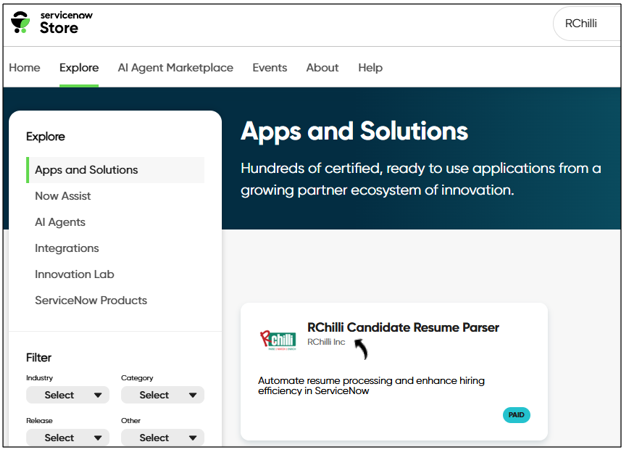
- From the search results, click RChilli Candidate Resume Parser under
Apps and Solutions.
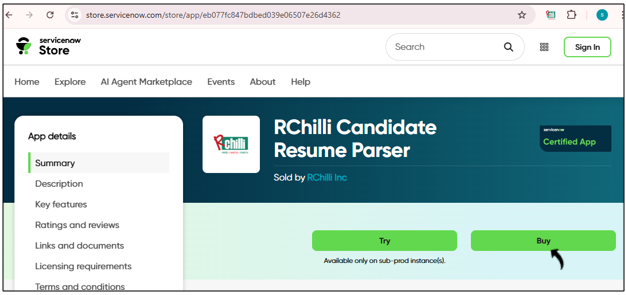
- Click Buy to purchase the RChilli Resume Parser product.Note:
- For more details on how to buy, refer to the ServiceNow Store documentation.
- Contact support@rchilli.com to approve your product purchase request.
Install RChili Resume Parser
- Once support@rchilli.com approves the purchase request, you will receive access to install the RChilli Resume Parser application in your ServiceNow instance.
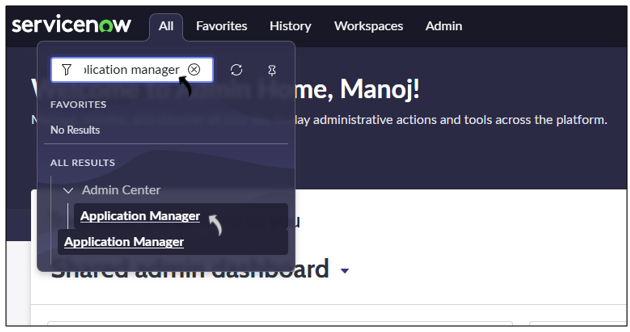
- In your ServiceNow account, search and click Applications
Manager.
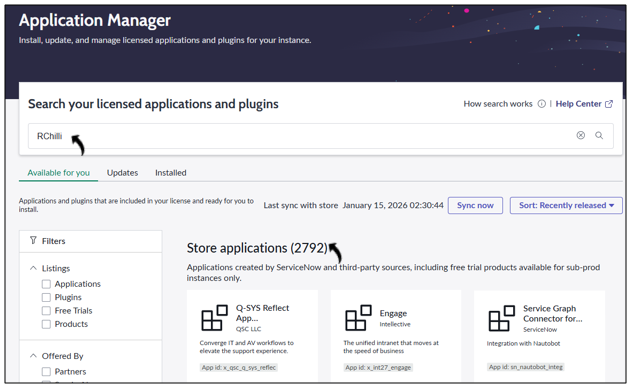
- In the Application Manager page, search and locate the RChilli
Resume Parser under Store Applications and installed
it.
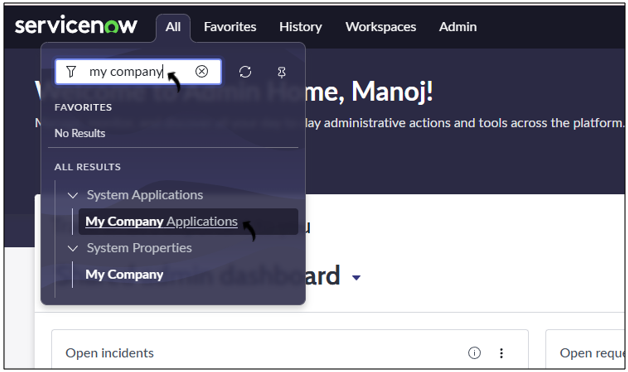
- After installation, search and click My Company Applications in your
ServiceNow account.
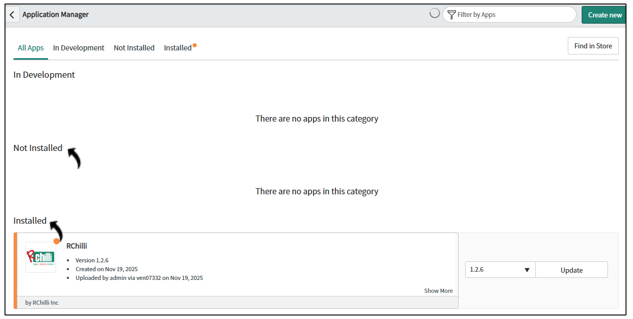
- Under the Installed tab, verify that the RChilli Resume Parser
application appears in the list. You can also check for available updates
and click Update if a newer version is available.
Authenticate using OAuth
Once you have installed the RChilli application, you must authenticate it using OAuth following below procedure.
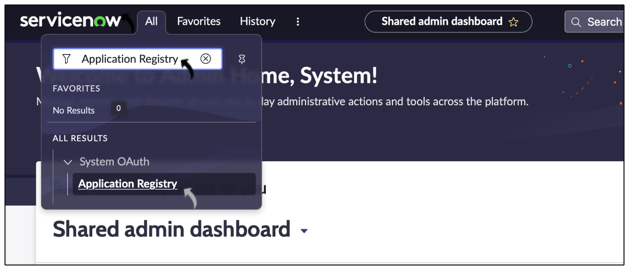
- In ServiceNow, search for Application Registry.
- Click Application Registry from the search results.
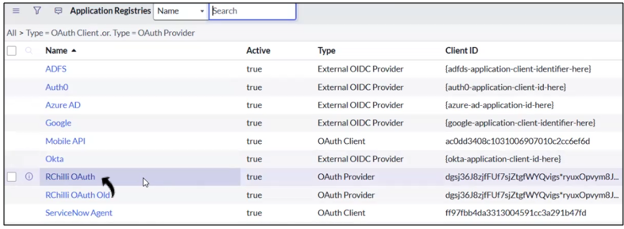
- On the Application Registry page, click RChilli OAuth.
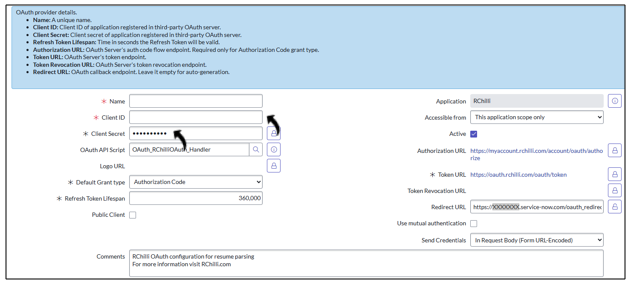
- On the OAuth Provider page, enter the following details:
- Enter Name, Client ID, Client Secret and
Authorization URL.Note: For Client ID, Client Secret, and Authorization URL, refer to below section Update Client Panel step - 4.
- Enter the Redirect URL for your ServiceNow instance.
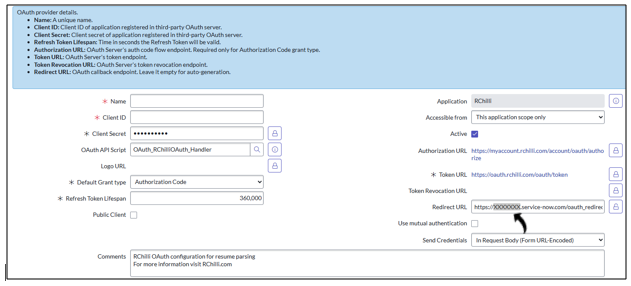 Note: Use only the first word of your ServiceNow instance URL for the Redirect URL update (for example,
https://xxxxxx.service-now.com).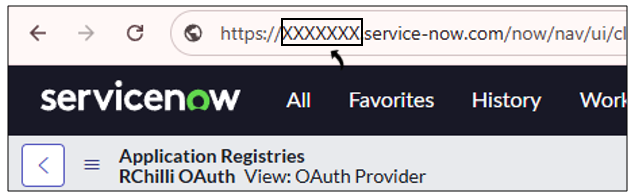
- Enter Name, Client ID, Client Secret and
Authorization URL.
- Click Update to save changes.
Update Client Panel
Update the Redirect URL in RChilli My Account for ServiceNow.
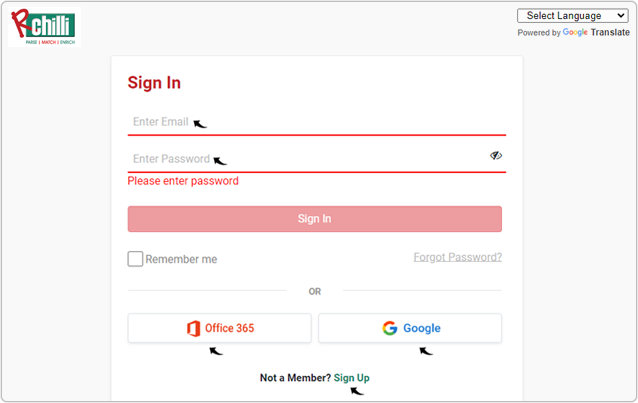
- Enter your Email and Password to log in to your RChilli My Account
client portal or use Office 365 or Google to log in as necessary.
You must sign up if you do not have registered account.Note: Contact support@rchilli.com for My Account portal access, subscription plans, pricing, and for any further support.
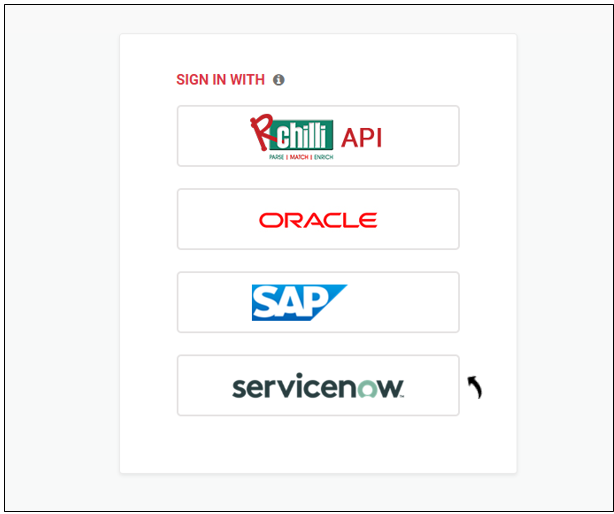
- Click ServiceNow to log in into RChilli My Account client portal for
ServiceNow.
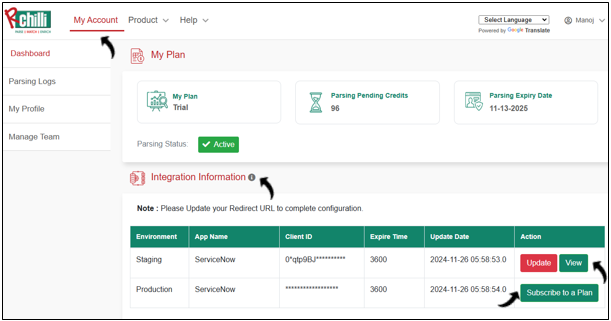
- On the My Account tab, go to the Integration Information section
and click View.Note:
- You can get details for Staging or Production environments as necessary.
- Click Subscribe to a Plan if you need production access.
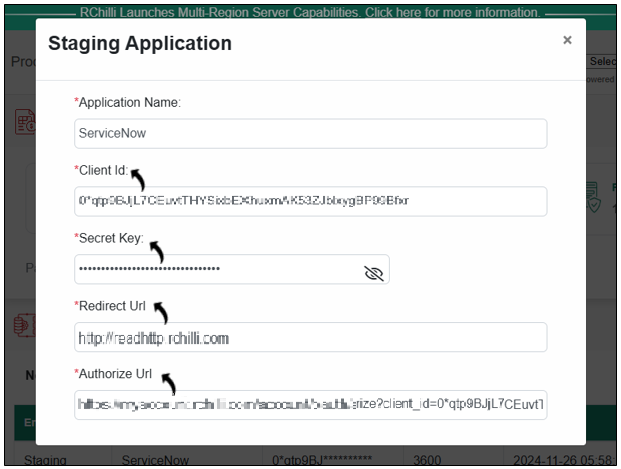
- On the Staging Application pop-up, make a note of the Client Id,
Secret Key, and Authorize Url. Note: Ensure that the Redirect URL and Authorize Url matches the value configured in ServiceNow. Refer step-4 in above section Authenticate using OAuth for more details.
Test Connection
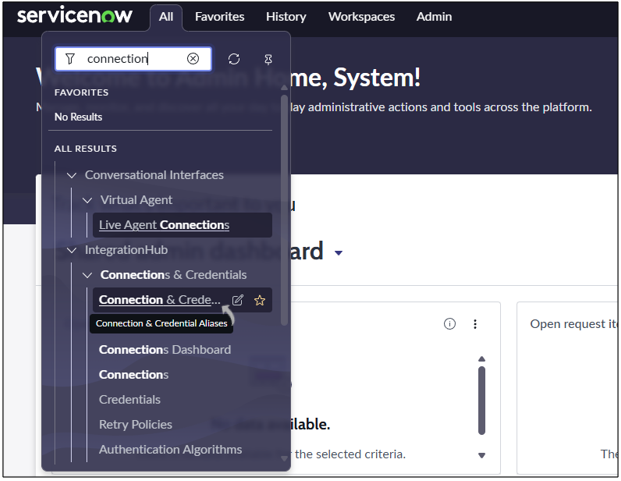
- In ServiceNow, search for Connection & Credentials Aliases.
- Click Connection & Credentials Aliases from the results.
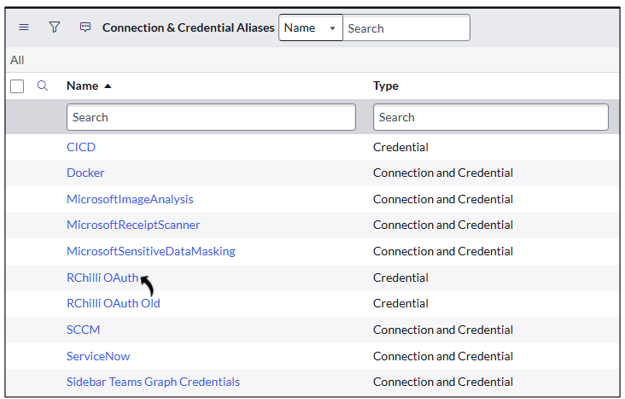
- On the Connection & Credentials Aliases page, click RChilli
OAuth.
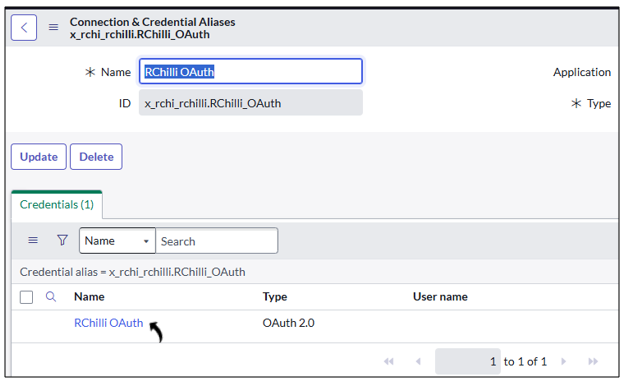
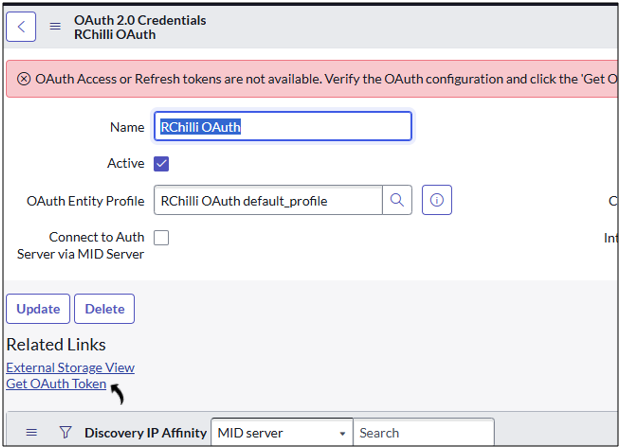
- Under Credentials tab, click RChilli OAuth.
- Under Related Links, click Get OAuth Token. Result: The RChilli My Account login portal opens.
- On the My Account sign in pop-up, enter your Email and
Password to log in to your RChilli My Account client portal or
use Office 365 or Google to log in as necessary. You must sign
up if you do not have registered account.Note: Contact support@rchilli.com for My Account portal access, subscription plans, pricing, and for any further support.
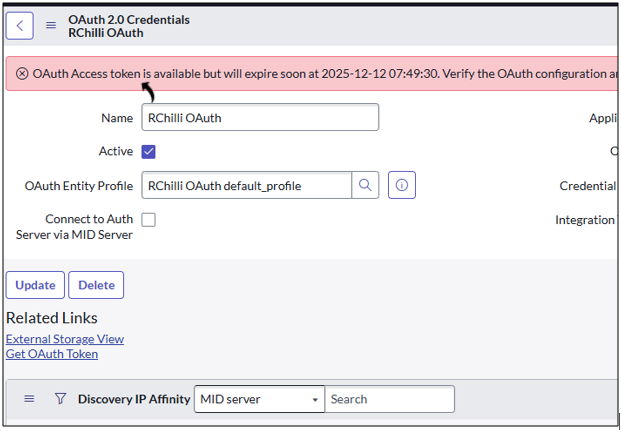
- Once you Authorize ServiceNow, your ServiceNow session will be able to
communicate with RChilli products.
Action
- Once the OAuth connection is active, you can test the Resume Parser Action.
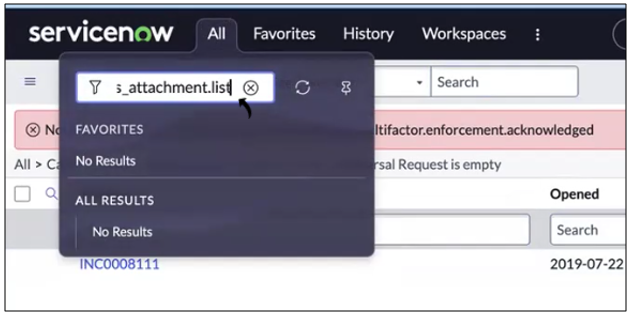
- Search for the sys_attachment.list to locate the resume files.
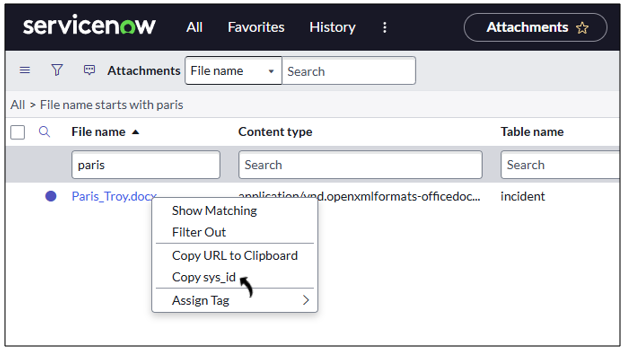
- On the attachment page, search a resume and right-click to select the
Copy sys_id the resume.
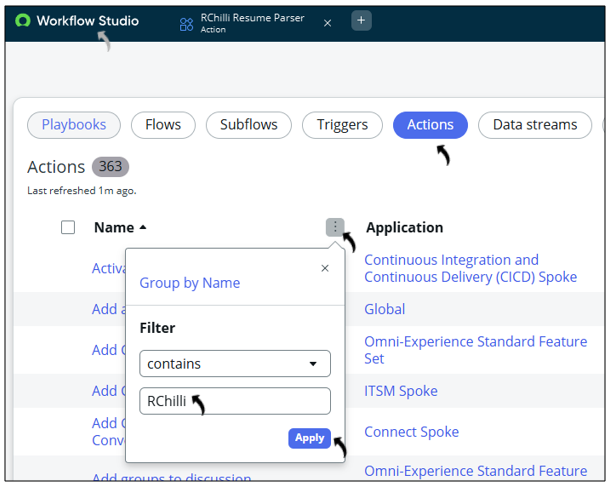
- In ServiceNow, open Workflow Studio.
- Click Actions and filter by “RChilli”.
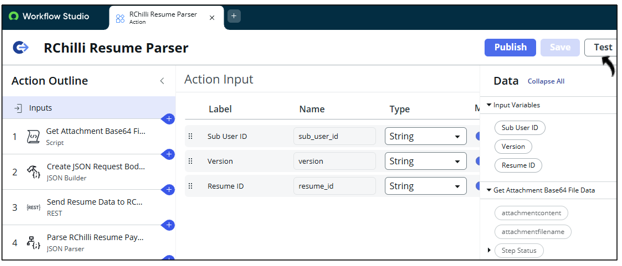
- Click Test on the RChilli Resume Parser Action.
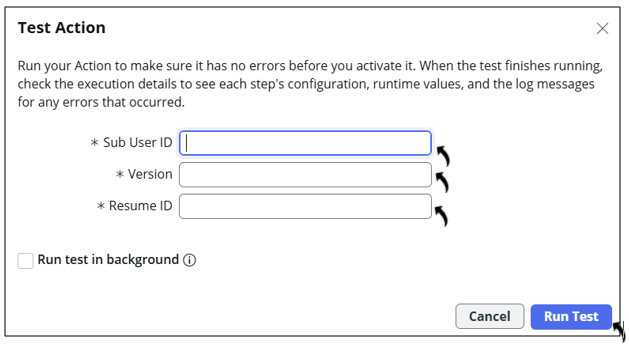
- On the Test Action pop-up, enter RChilli Sub User ID,
Version, Resume ID (sys_id). Click Run Test.Note: For Resume ID (sys_id), refer above step - 3.
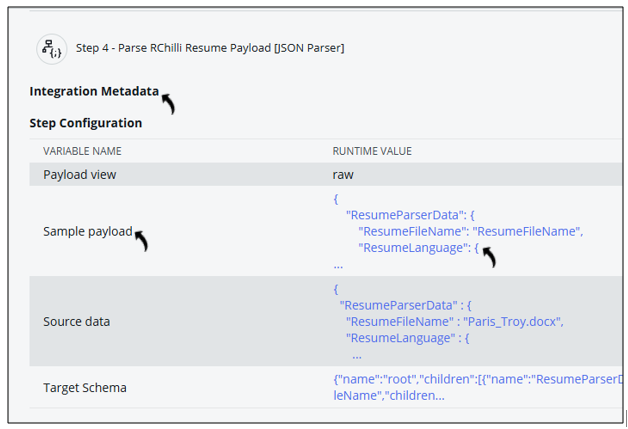
- After the test completes, click view to see the execution details.
- Expand Steps and under Integration Metadata, review the
Sample payload to confirm parsed resume data.
Use Action in Business Flow
Once tested, you can integrate the Resume Parser Action in any ServiceNow business flow.
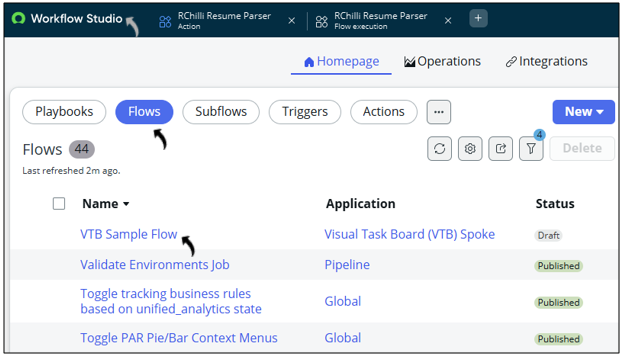
- In Workflow Studio, click Flows.
- Select an existing flow or create a new one.
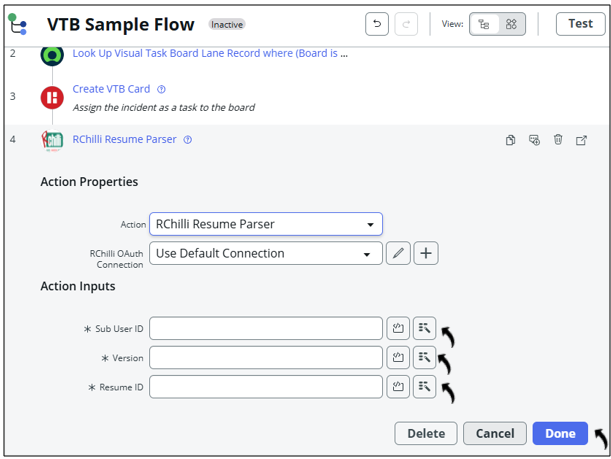
- Add the RChilli Resume Parser Action to your workflow.
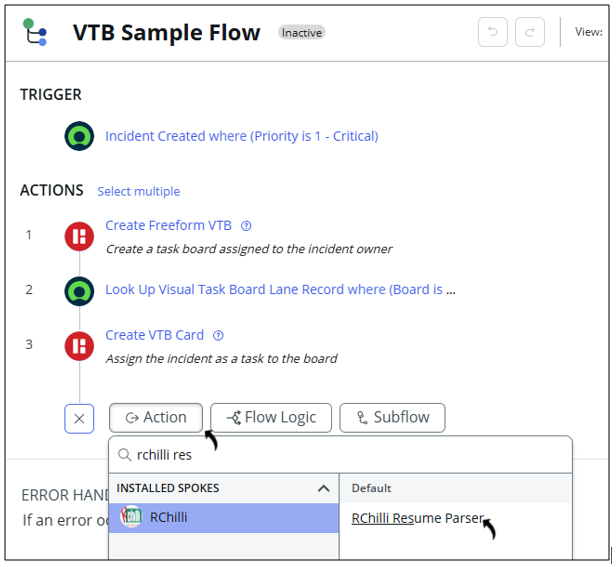
- Add RChilli Sub User ID, Version, Resume ID, and click
Done.