
Bulk Profile Import
This topic describe the procedure on how you can parse and upload bulk resumes into your Oracle account.
After you purchase Bulk Profile Import (SFTP), RChilli provides the SFTP details that you can use to upload bulk resumes. The resumes uploaded to the SFTP server are parsed and uploaded to Oracle Recruiting Cloud. Follow these steps to get the SFTP details.
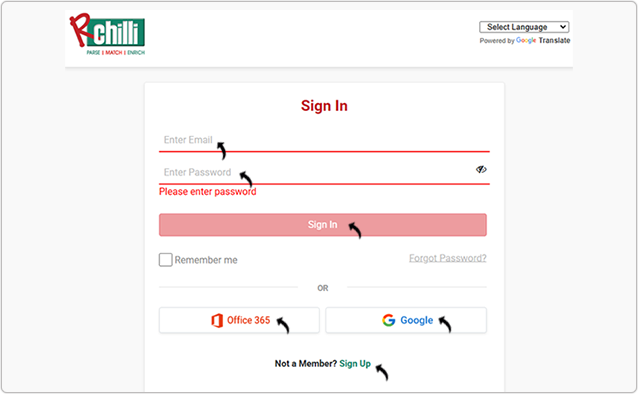
- Enter your Email and Password to sign in to the RChilli My Account
client portal. Alternatively, use Office 365 or Google to sign in. If
you don't have a registered account, sign up for an account.Note: Contact support@rchilli.com for My Account portal access, subscription plans, pricing, and for any further support.
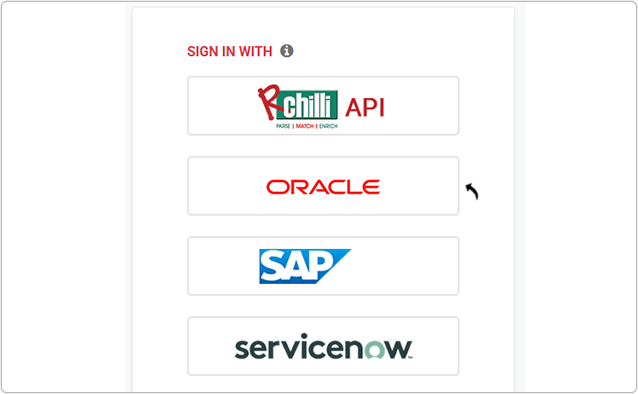
- Click ORACLE to log in into RChilli My Account client portal for
Oracle.
- Navigate to .
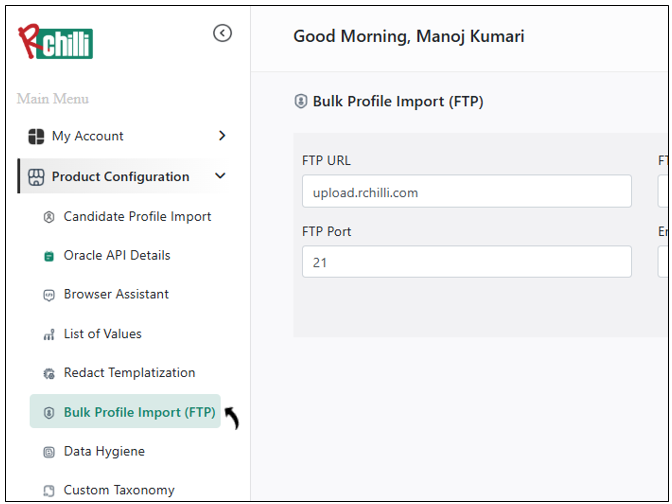
- On the Bulk Profile Import Details page, view the FTP (SFTP) URL,
Username, Password, Port, and Environment
details.Note:
- Make sure that the status is Active before you upload resumes to the SFTP server.
- Contact support@rchilli.com to purchase the Bulk Profile Import or for any further support.

Upload Resumes Using FileZilla
Follow this procedure to upload resumes by using the Bulk Profile Import feature.
- Use any SFTP client, such as FileZilla, WinSCP, etc., and follow the below steps
to upload the files/zip containing resumes in the SFTP server provided by
the RChilli support team.Note: The following steps are provided taking the FileZilla SFTP client as a reference. You can use any SFTP client and follow your SFTP client procedure to upload the files.
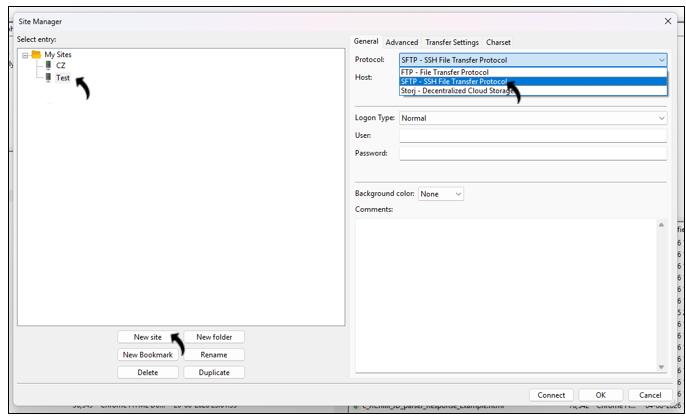
- Open FileZilla SFTP client and click Site Manager
 icon to open the Site Manager window.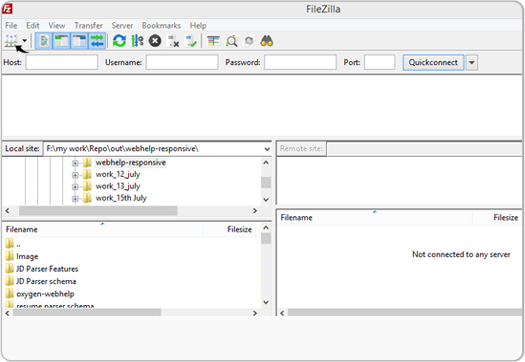
- In the Site Manager window, select New site and enter a name
for the site, such as Test. For Protocol, select SFTP - SSH
File Transfer Protocol.
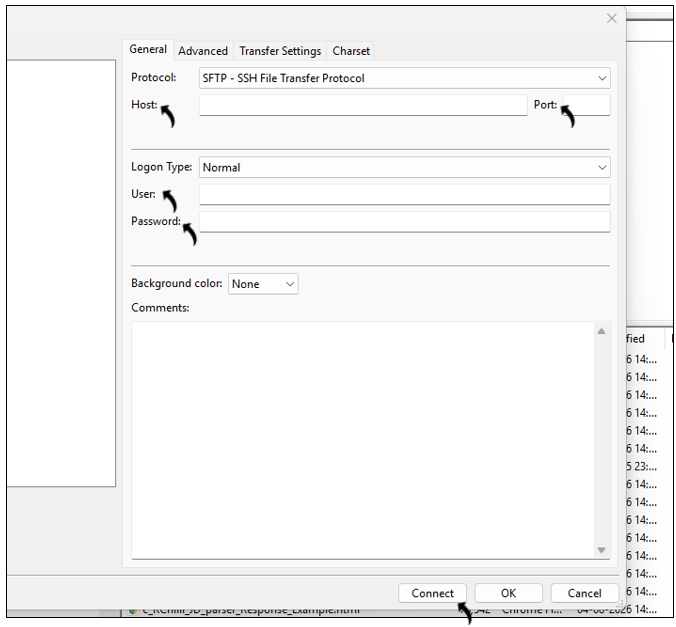
- Enter the Host (your SFTP URL), Port, User, and
Password, and then select Connect.
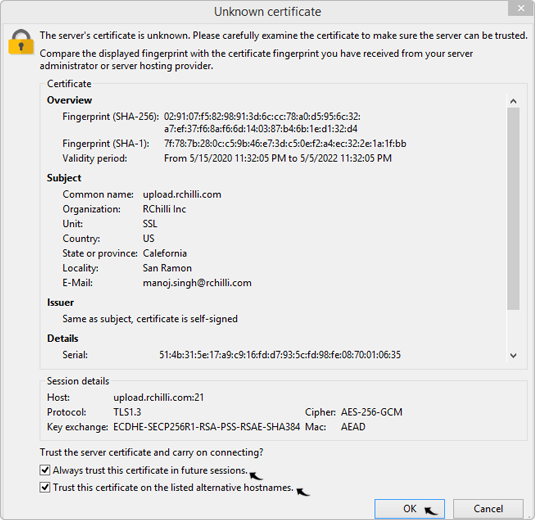
- If the Unknown certificate pop-up appears, verify the server and
certificate information, select the applicable trust options, and then
select OK.Note: The Unknown certificate pop-up might not appear if the certificate has already been trusted.
-
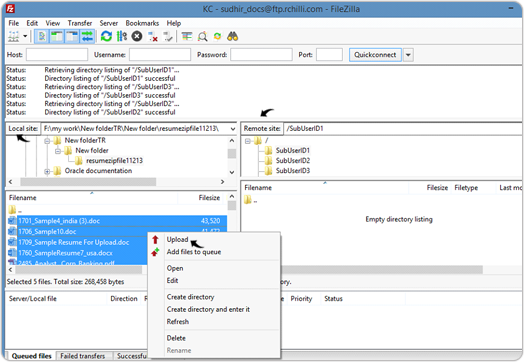
After FileZilla connects to the SFTP server, follow these steps to upload resumes:
- Select the resume folder in Local site. The resumes in the selected folder are displayed in the file list.
- Create directories in Remote site for the applicable SubUserIDs, such as SubUserID1, SubUserID2, and SubUserID3.
-
Select the required directory in Remote site, such as SubUserID1. Select the resumes in Local site, and then select Upload. Repeat these steps to upload resumes for other SubUserIDs.Note: You can also upload resumes directly to the SFTP root folder without creating a SubUserID directory.
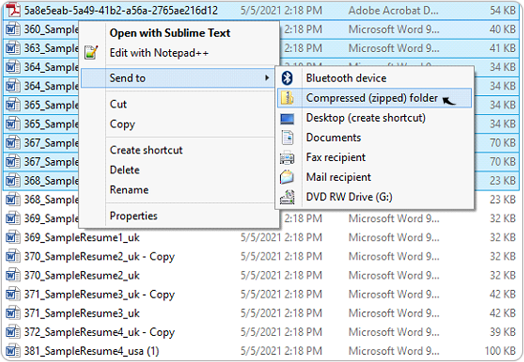
- ou can upload a ZIP file to the SFTP server. Make sure that the ZIP file
contains only resume files and doesn't contain any folders or subfolders.
For example, select the required resume files and create a Compressed
(zipped) folder.
- After the resumes are uploaded to the SFTP server, the corresponding
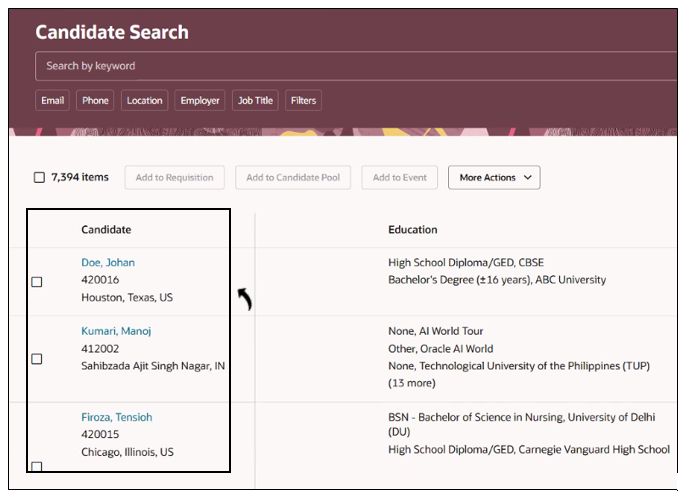
candidates are added to Oracle Recruiting Cloud. Processing time depends on
the number and size of the uploaded files or ZIP files.
- To view the Bulk Profile Import logs, see Data Hygiene.