Data Hygiene
This topic describe the procedure on how you can view the logs for the Data Hygiene (reprocessing) of resumes in the Oracle.
If you have purchased Smart Apply, Full Database Reprocessing, or Bulk Profile Import
(FTP) then you can view the processing logs in RChilli My Account.
- Smart Apply: If you have purchased Smart Apply, all resumes uploaded to Oracle are automatically reprocessed—parsed and updated—every 30 minutes.
- Full Database Reprocessing: If you have purchased Full Database Reprocessing, all resumes in Oracle are reprocessed monthly, every three months, or every six months, depending on the purchased plan.
- Bulk Profile Import (FTP): You can upload resumes in bulk through FTP to have them parsed and uploaded to your Oracle account. To know more details, refer Bulk Profile Import.
Follow the below steps to view the reprocessing logs in the RChilli My account:
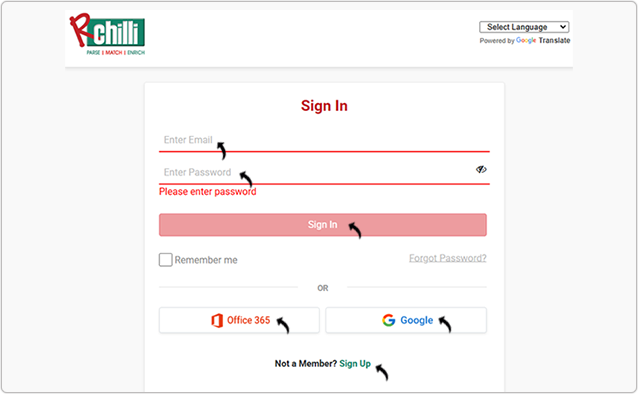
- Enter your Email and Password to log in to your RChilli My Account
client portal or use Office 365 or Google to log in as necessary.
You must sign up if you do not have registered account.Note: Contact support@rchilli.com for My Account portal access, subscription plans, pricing, and for any further support.
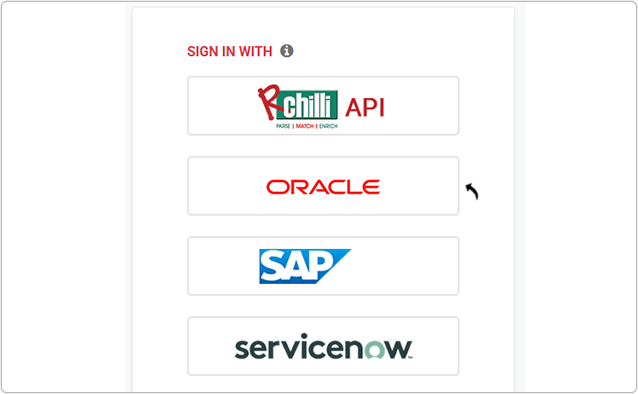
- Click ORACLE to log in into RChilli My Account client portal for
Oracle.
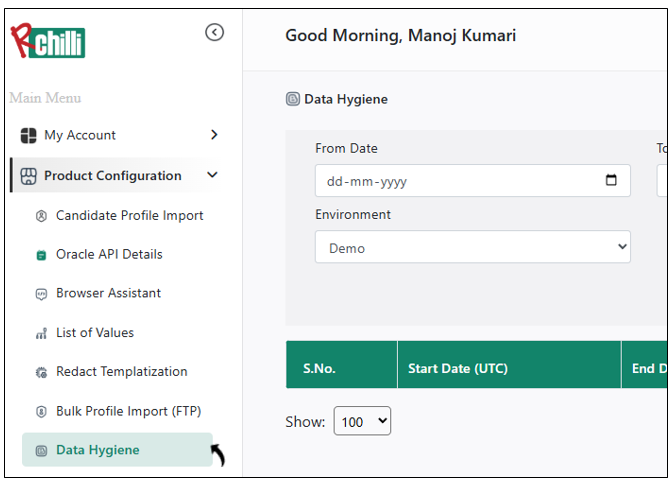
- Navigate to .
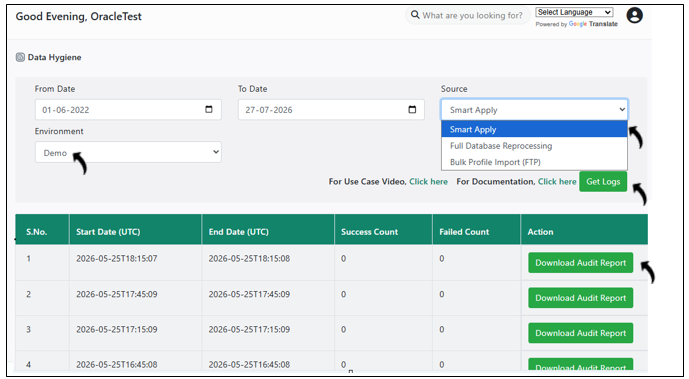
- On the Data Hygiene page, you can do the following:
- You can select either Demo or Prod environment as needed.
- You can select Smart Apply, Full Database Reprocessing, or Bulk Profile Import (FTP) as applicable (based on your purchased plan, contact support@rchilli.com for any support.)
- Click Get Log to download the logs as per your selection above.
- Click Download Audit Report to download the Audit Report as per
your selection above. This report shows the old and new data after Data
Hygiene.