
Integrate RChilli MCP Server with Claude
This topic describe the procedure how to connect the RChilli MCP Server to Claude.ai, configure the available RChilli tools, and verify that Claude can use the connected MCP tools.
The RChilli Model Context Protocol (MCP) Server enables Claude to access RChilli tools within a conversation. After you connect the MCP Server, you can select the RChilli tools that Claude can use and submit prompts that require those tools.
Prerequisites
Before you begin, ensure that:
- You have access to Claude.ai.
- You have valid credentials for the RChilli environment.
- You have the RChilli MCP Server URL.
RChilli MCP Server URL
Use the following MCP Server URL to connect a supported AI assistant to RChilli:
https://mcp.rchilli.ai/mcp
Important: Use this URL when configuring RChilli as a custom MCP server in the supported AI assistant.
Connect the RChilli MCP Server to Claude
To connect the RChilli MCP Server to Claude.ai, perform the following steps:
- Go to Claude.ai and sign in with your authorized account.
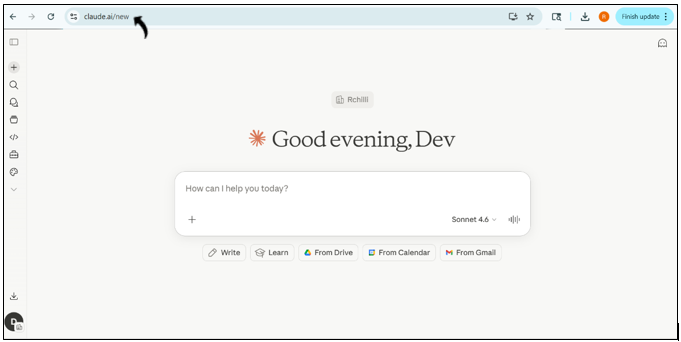
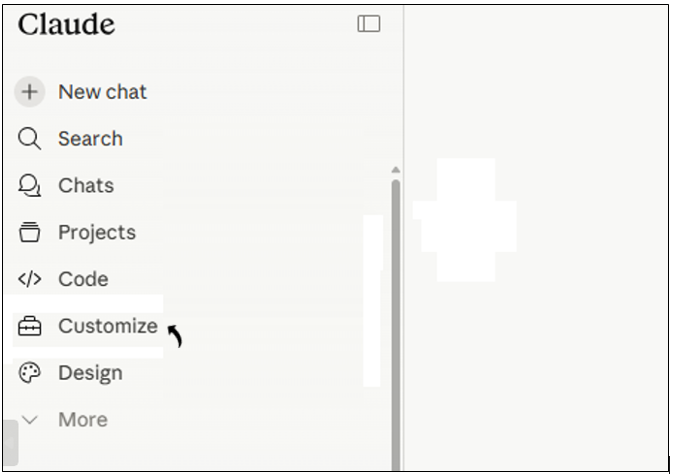
- In the left sidebar, click your profile or Customize option.
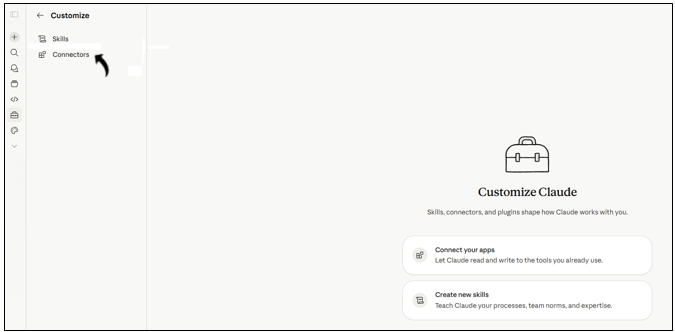
- Click Connectors.
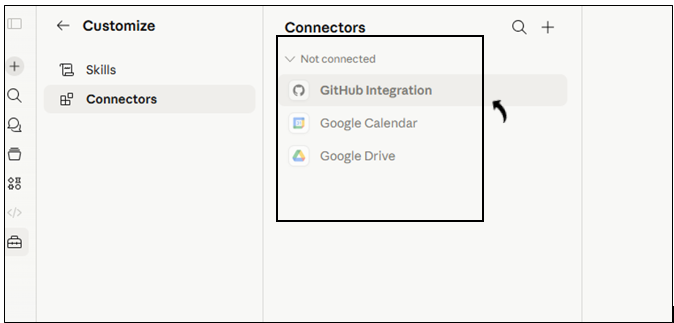
- On the Connectors page, review the available connectors. Note: The page can display integrations such as Google Drive, Slack, Jira, Notion, Gmail, GitHub, and Zoom.
- Scroll to Add custom connector, and then click it.
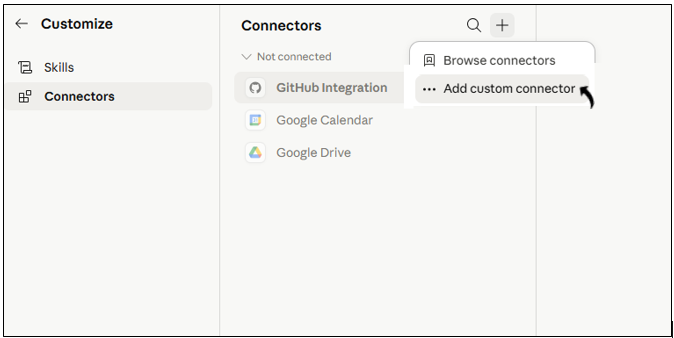
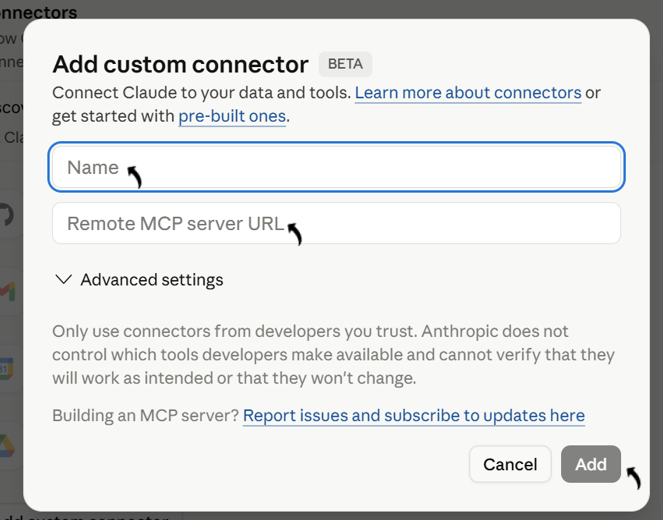
- Enter the following information:
- Name: Enter a name for the connector, such as RChilli MCP Server.
- Remote MCP server: Enter
https://mcp.rchilli.ai/mcp. - Click Add.
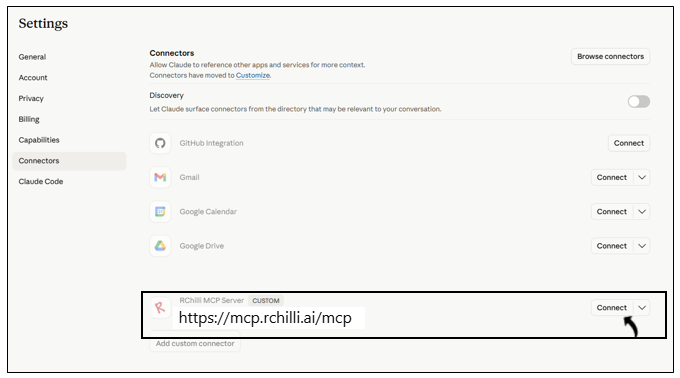
- The RChilli MCP Server appears in the list of configured connectors. For the
RChilli MCP Server, click Connect.
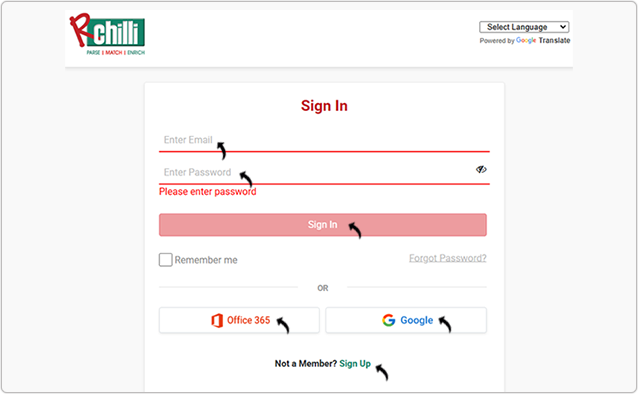
-
An OAuth authorization window opens. Sign in with your RChilli credentials. You can also Sign Up to register a new account or log in using Office 365 or Google accounts as necessary.Note: Contact support@rchilli.com for My Account portal access, subscription plans, pricing, and for any further support.
- After successful authentication, Claude redirects you to the Connectors page.
Configure RChilli MCP Tools
After connecting the MCP Server, configure the tools that Claude can use.
- For the connected RChilli MCP Server, click Configure.
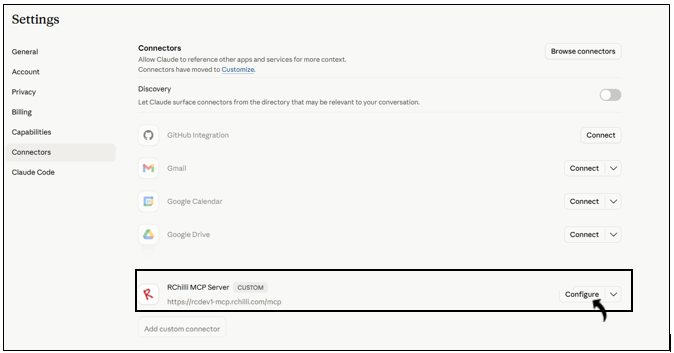 Info: Claude displays the tools available through the MCP Server.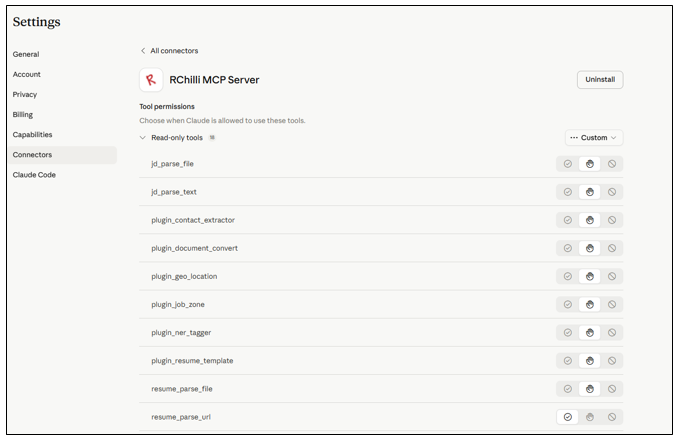
- Enable the tools that you want Claude to use.Info: You can enable individual tools based on your requirements or enable all available tools so that Claude can select the appropriate tool for your prompt.

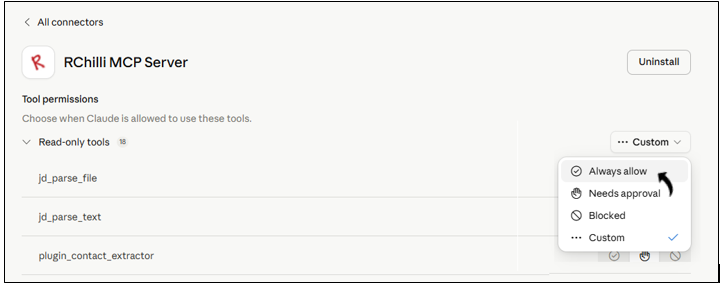
- If required, select Always allow to allow Claude to use the enabled tools
without requesting permission each time.
Use RChilli MCP Tools in a Conversation
After configuring the tools, you can use the RChilli MCP Server in Claude conversations.
- Start a new conversation or open an existing conversation in Claude.
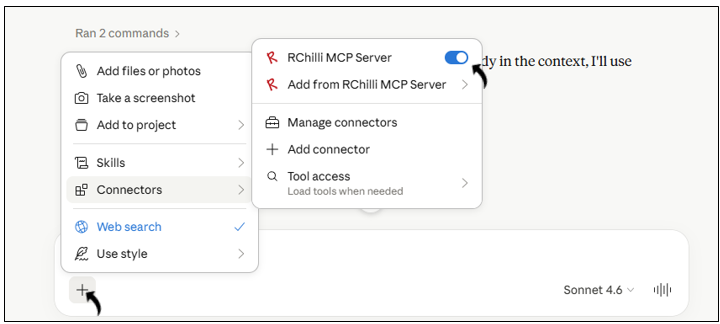
- Click the + button in the chat window. Verify that the connected
RChilli MCP Server is available.
- Enter a prompt that requires an RChilli MCP tool.Info: For example, submit a request that requires resume parsing.
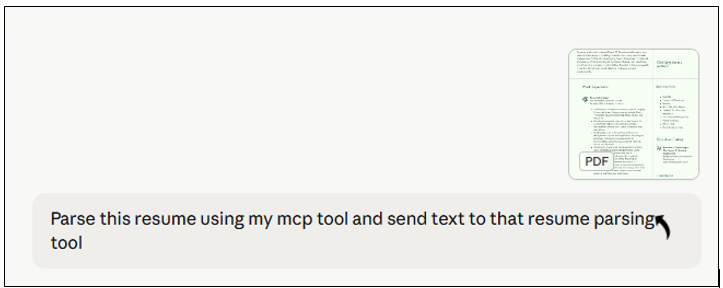
- Submit the prompt. Info: Claude determines the appropriate enabled RChilli MCP tool for the request. For a resume parsing request, Claude can select the Resume Parser tool.
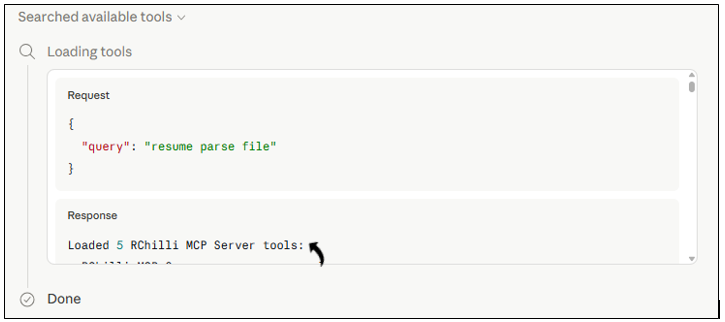
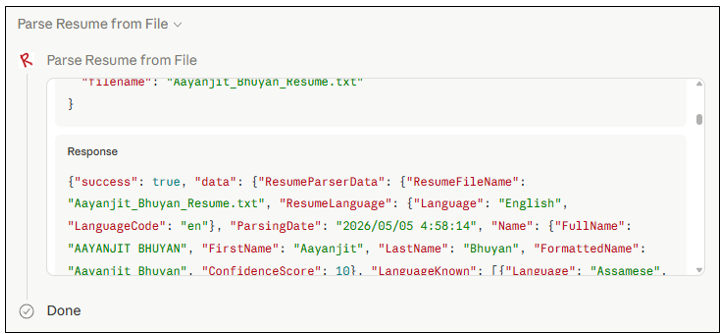
- Review the response returned by Claude. Verify that:
- The appropriate RChilli MCP tool was invoked.
- The tool execution completed successfully.
- Claude generated the response using the result returned by the RChilli
MCP Server.
Troubleshooting
Use the following information to troubleshoot common integration issues.
| Issue | Resolution |
| Connector shows Disconnected | Reauthorize the connector and complete OAuth authentication again. |
| RChilli tools are not displayed | Open Configure for the RChilli MCP Server and verify that the tools are available and enabled. |
| Permission denied error | Verify that the account used for authentication has the required permissions. |
| MCP Server connection fails | Verify the configured MCP Server URL and confirm that the server is available. |
| Authentication fails | Verify that you are using valid credentials for the applicable RChilli environment. |