
Integrate RChilli MCP with ChatGPT
Integrate the RChilli MCP server with ChatGPT to access supported RChilli capabilities directly from a ChatGPT conversation.
Once you complete the integration, ChatGPT can use RChilli tools. Refer Use Cases and Supported Capabilities for more details.
This following procedure explains how to enable Developer mode, create the RChilli MCP app, complete OAuth authentication, and verify the integration. It does not explain how to deploy or configure the RChilli MCP server.
Before you begin
Make sure that you have:
- A ChatGPT Pro or Plus account.
- Access to Developer mode in ChatGPT.
- The RChilli MCP server URL provided by your RChilli administrator.
- Valid credentials for OAuth authentication.
- Permission to submit and process recruitment data through RChilli.
Important: The availability of Developer mode and custom apps can depend on your ChatGPT plan, workspace configuration, and administrator permissions.
Security note: Use only the MCP server URL provided by RChilli or your authorized administrator. Do not connect ChatGPT to an unverified MCP server.
RChilli MCP Server URL
Use the following MCP Server URL to connect a supported AI assistant to RChilli:
https://mcp.rchilli.ai/mcp
Important: Use this URL when configuring RChilli as a custom MCP server in the supported AI assistant.
Enable Developer Mode in ChatGPT
Developer Mode must be enabled before you can add the RChilli MCP server to ChatGPT.
- Open
https://chatgpt.comin a browser. -
Sign in with your ChatGPT Pro or Plus account.
-
Select your profile icon in the lower-left corner to open the user menu.
-
Select Settings.
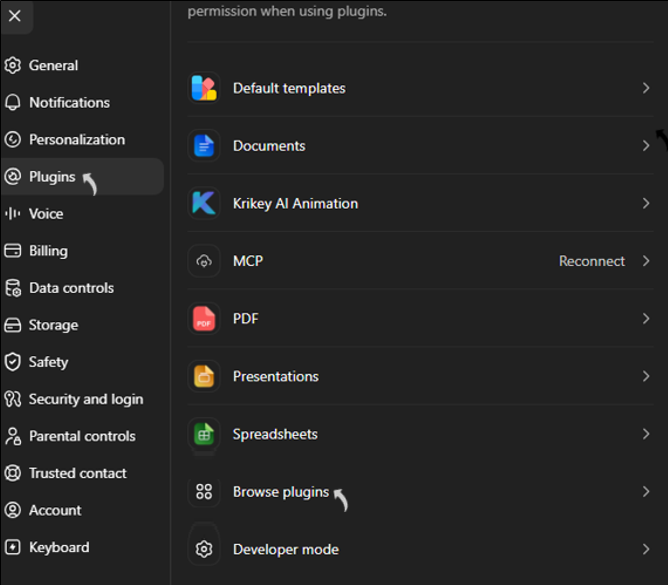
- In Settings, select Plugins.
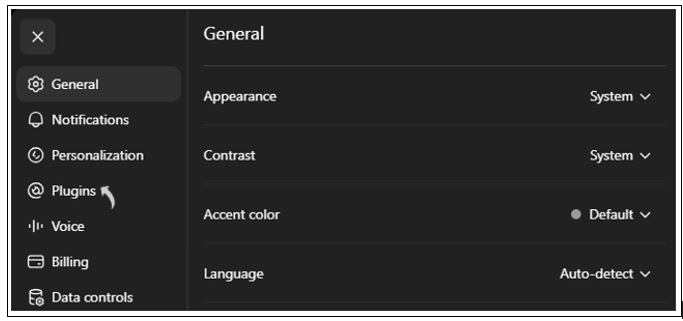
- Locate Advanced settings, and then select it.
- Turn on Developer mode.
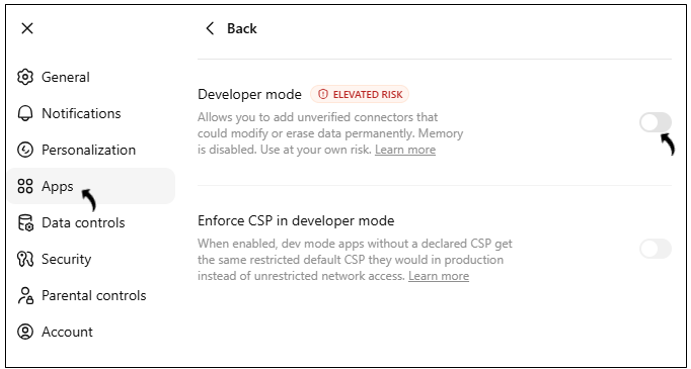
After you enable Developer Mode, ChatGPT displays the Create app option, which you can use to add a custom MCP server.
Caution: Developer Mode allows you to add custom MCP servers that might not have been verified by OpenAI. Connect only to the RChilli MCP server URL provided by an authorized administrator.
Create the RChilli MCP app
Use the Create app option to configure a connection to the RChilli remote MCP server.
- In the Plugins settings, select Browse plugins.
- Click on the + icon to create app.
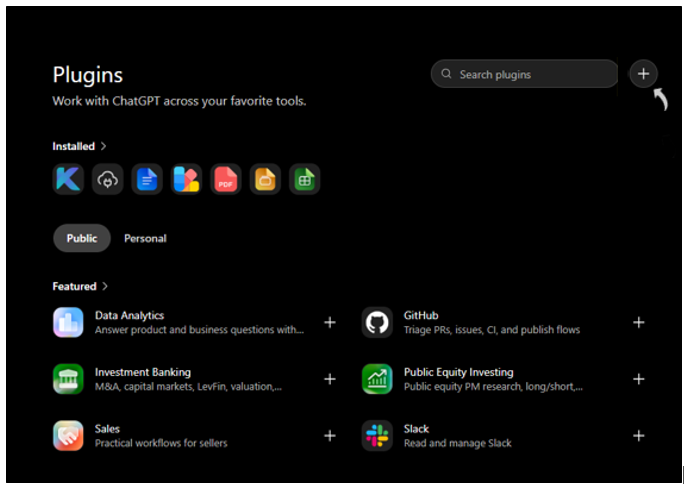
- In the New App dialog box, enter the connector details as per the
details given in the following table.
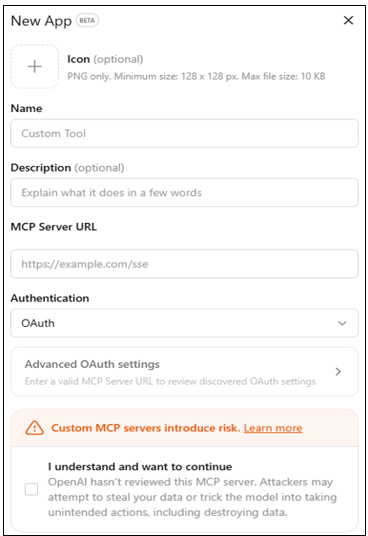
Field Value Name Enter a recognizable name, such as RChilli MCP HuborRChilli Resume Parser API.Description Optional. Enter a brief description, such as Connects to the RChilli MCP server for resume parsing and talent acquisition tools.Icon Optional. Upload the RChilli logo to help users identify the app. MCP Server URL Enter the complete RChilli MCP server URL https://mcp.rchilli.ai/mcpAuthentication Select OAuth. Important: Use the MCP server URL provided by your administrator. Do not use an unverified URL.
- Verify that Authentication is set to OAuth.
OAuth delegates authentication to the external authorization provider instead of storing the user credentials in ChatGPT.
- Select the checkbox to confirm that you trust the application and understand
the associated security risks.
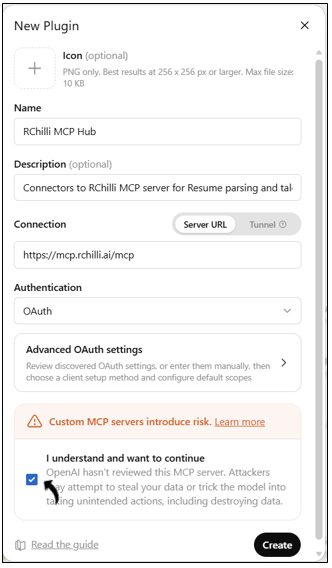
- Select Create.
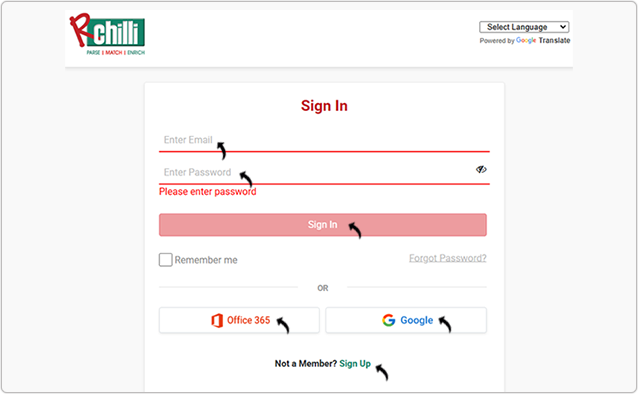
ChatGPT opens the RChilli OAuth authorization page.
Authenticate the connection
- On the RChilli sign-in page, enter your Email, Password, and
click Sign In to log in to your My Account partner portal. You can also
Sign Up to register a new account or log in using Office 365
or Google accounts as necessary.Note: Contact support@rchilli.com for My Account portal access, subscription plans, pricing, and for any further support.
- After successful authentication, wait for the browser to redirect you to
ChatGPT.
Security note: Never share your OAuth credentials with another person. If the browser redirects you to an unfamiliar sign-in page, stop the process and contact your IT security team.
Review the available RChilli tools
- In ChatGPT, open Settings.
- Select Apps.
- Select the RChilli MCP app.
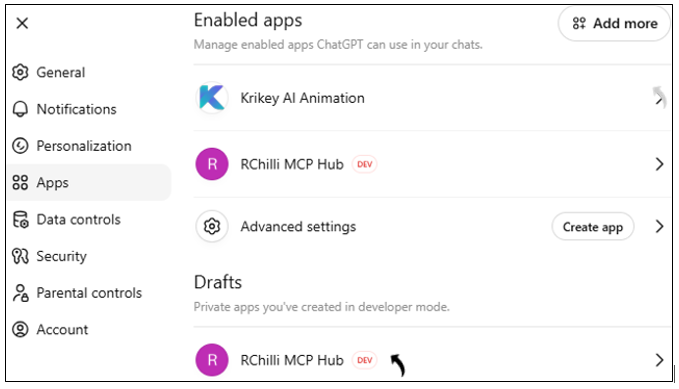
- Review the tools available through the RChilli MCP server.
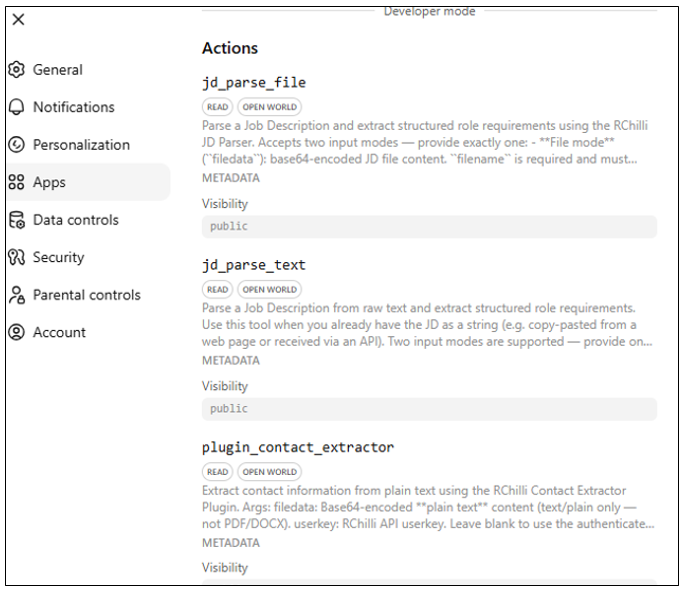
The displayed tools depend on the tools configured on the RChilli MCP server and the permissions assigned to your account.
The tool list can include capabilities such as:
- Resume parsing
- Job description parsing
- Contact information extraction
- Taxonomy lookup
- Resume redaction
- Candidate search
- Resume and job matching
Use RChilli MCP connector in a ChatGPT conversation
The RChilli MCP connector must be activated in each new conversation before ChatGPT can use the available RChilli tools.
- Return to the main ChatGPT interface.
- Select New Chat.
-
In the message composer, select the Add icon (+).
- elect RChilli MCP Hub from the list of available apps.
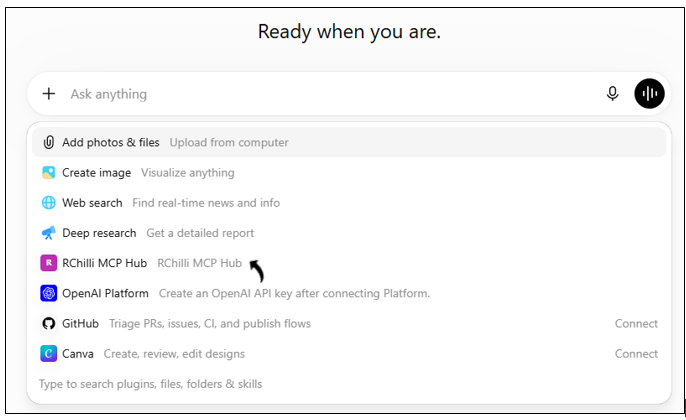
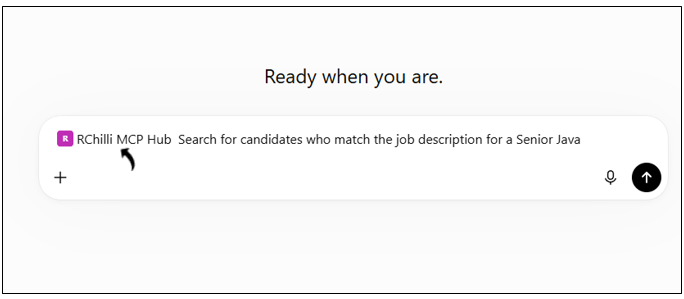
- Verify that RChilli MCP Hub appears in the message composer. Enter a
prompt that describes the action that you want RChilli to perform.Note: After you select RChilli MCP Hub, ChatGPT can use the RChilli tools available for the current conversation. You might need to select the app again when you start a new conversation.
Troubleshoot the integration
| Issue | Resolution |
|---|---|
| Developer Mode is not displayed | Verify that you are using a ChatGPT Pro or Plus account. Contact your administrator if the setting is still unavailable. |
| The connector displays an error after creation | Verify that the MCP server URL is correct and that the server is available. Contact your IT administrator for the current URL. |
| The OAuth sign-in page does not open | Check your network connection and confirm that the OAuth provider is reachable. Clear the browser cache or use an incognito window. |
| The OAuth page displays Access denied | Verify your credentials and confirm that your account has been granted access to the RChilli MCP server. |
| A tool call fails or returns an empty result | Verify that the MCP server is running and that the requested tool is supported. Contact your administrator to confirm the server status. |
| The connector is not active in a new conversation | Select the RChilli MCP app again when you start a new conversation. The connector is persistent, but it must be activated for each conversation. |
| ChatGPT requests an unexpected write operation | Do not confirm the request. Disconnect the connector and report the incident to your IT security team. The request might indicate a prompt-injection attempt. |